Work With Content
Documents and details
Open, move, share, classify, edit, select, and delete documents.
Open a document
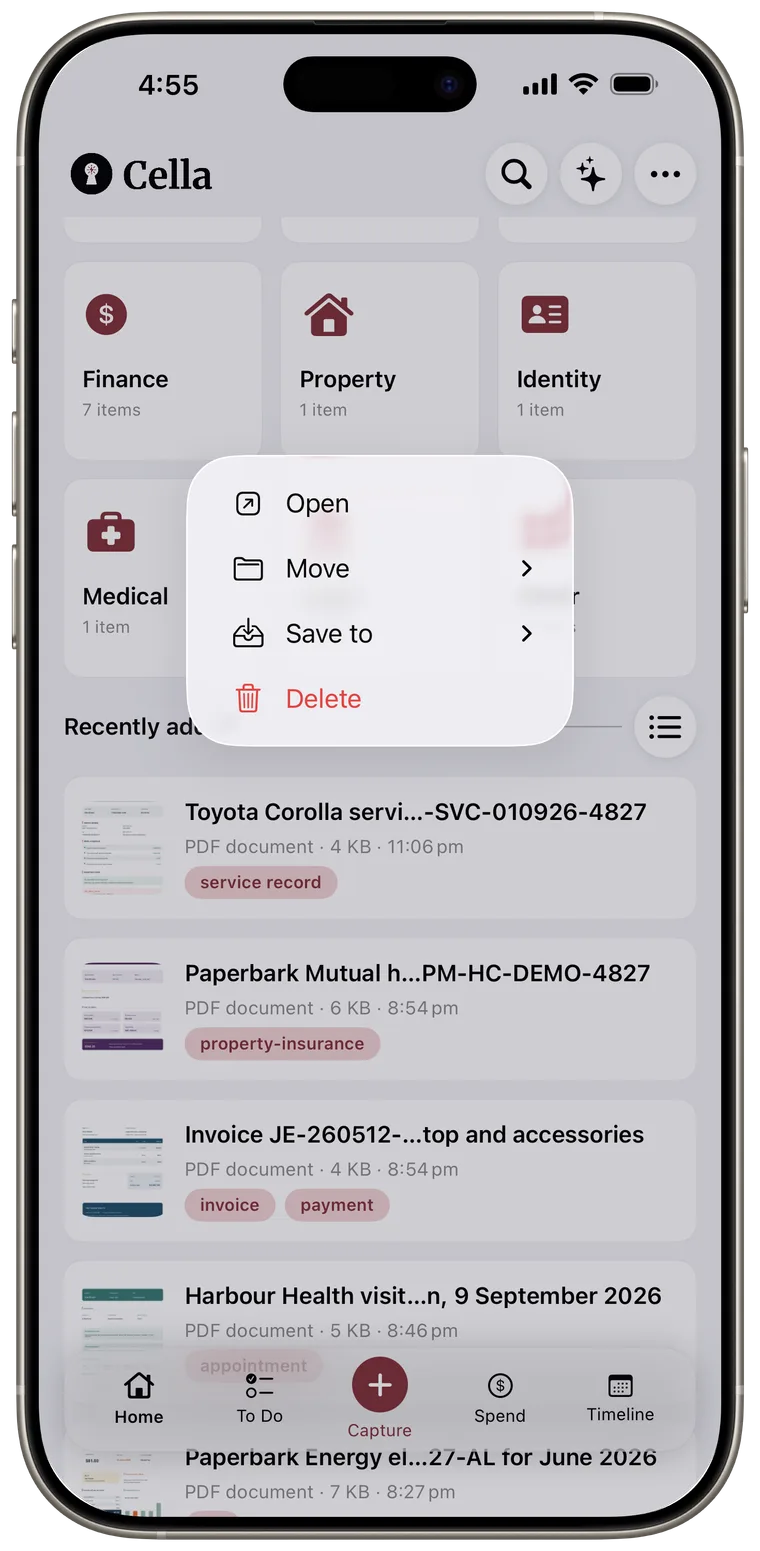
Tap a document row to open its details. You can also touch and hold a row and tap Open to show the original file preview.
Swipe a row left to reveal quick Open and Delete buttons. A full left swipe starts the delete confirmation.
Use the document menu
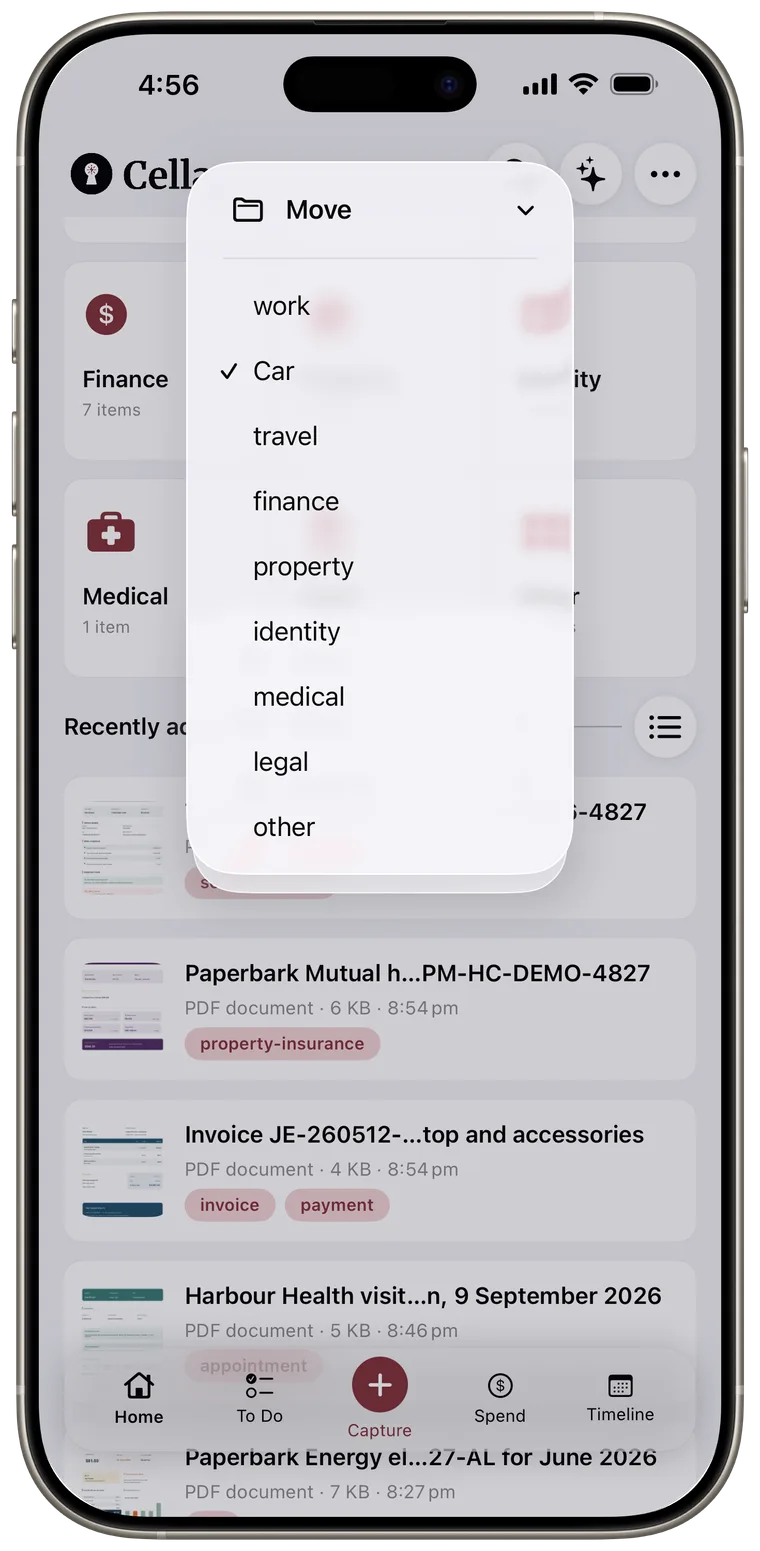
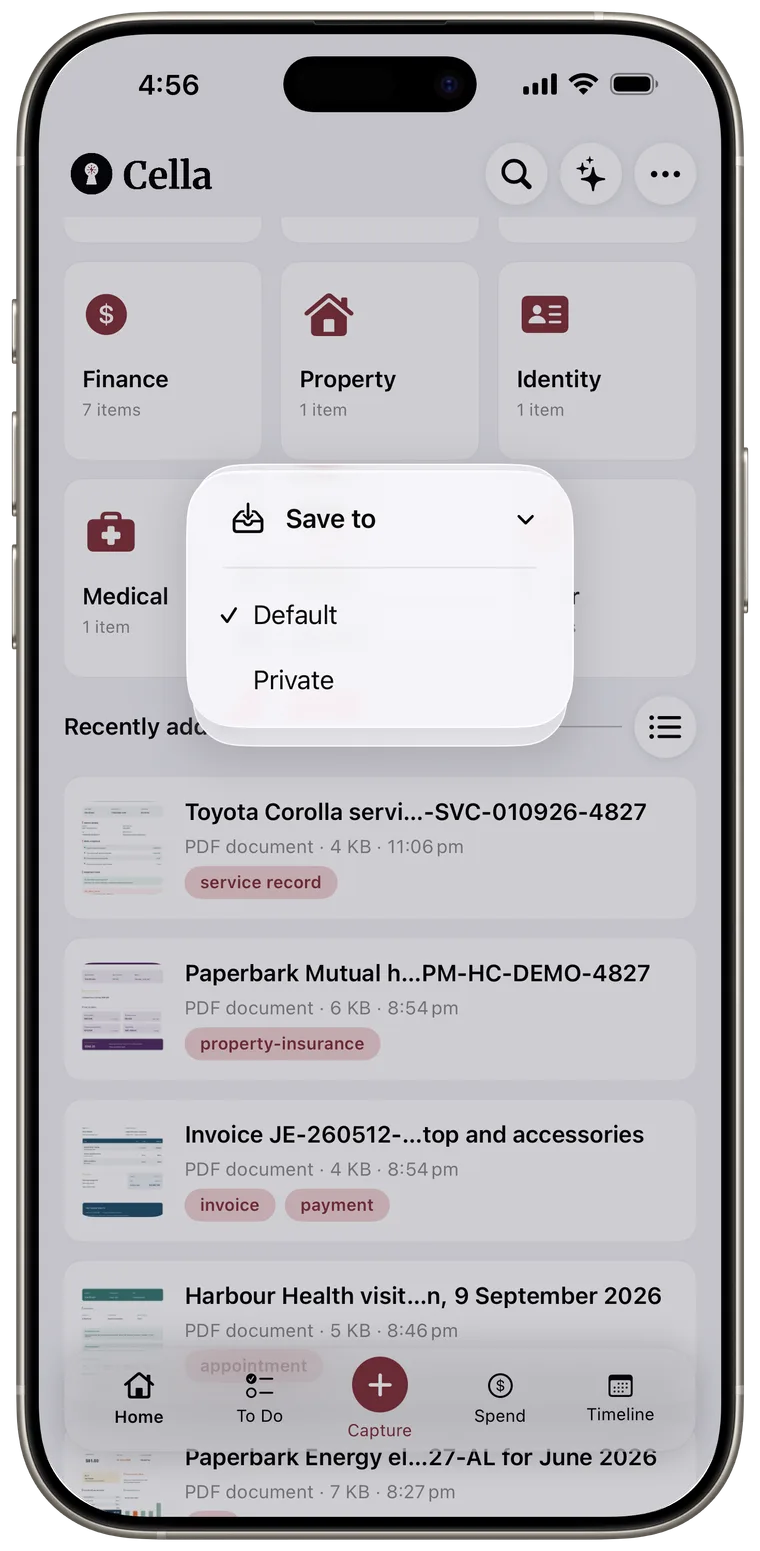
Touch and hold a document row for these actions:
- Open previews the stored file.
- Move changes the Smart Space.
- Save to moves the item between the Default and Private vaults when both are available.
- Edit spend appears in a Spend category document list.
- Delete removes the item after confirmation.
Moving to another Smart Space does not change vault. Moving to another vault keeps the document but changes where it is stored and viewed.
Select several documents
- Tap the list button beside a document section.
- Tap each document you want to select.
- Open the selection actions menu.
- Choose Delete, Move, or Save to.
- Tap the close button to leave selection mode.
Move and Save to are unavailable while a selected document is still processing.
Check the preview and main actions
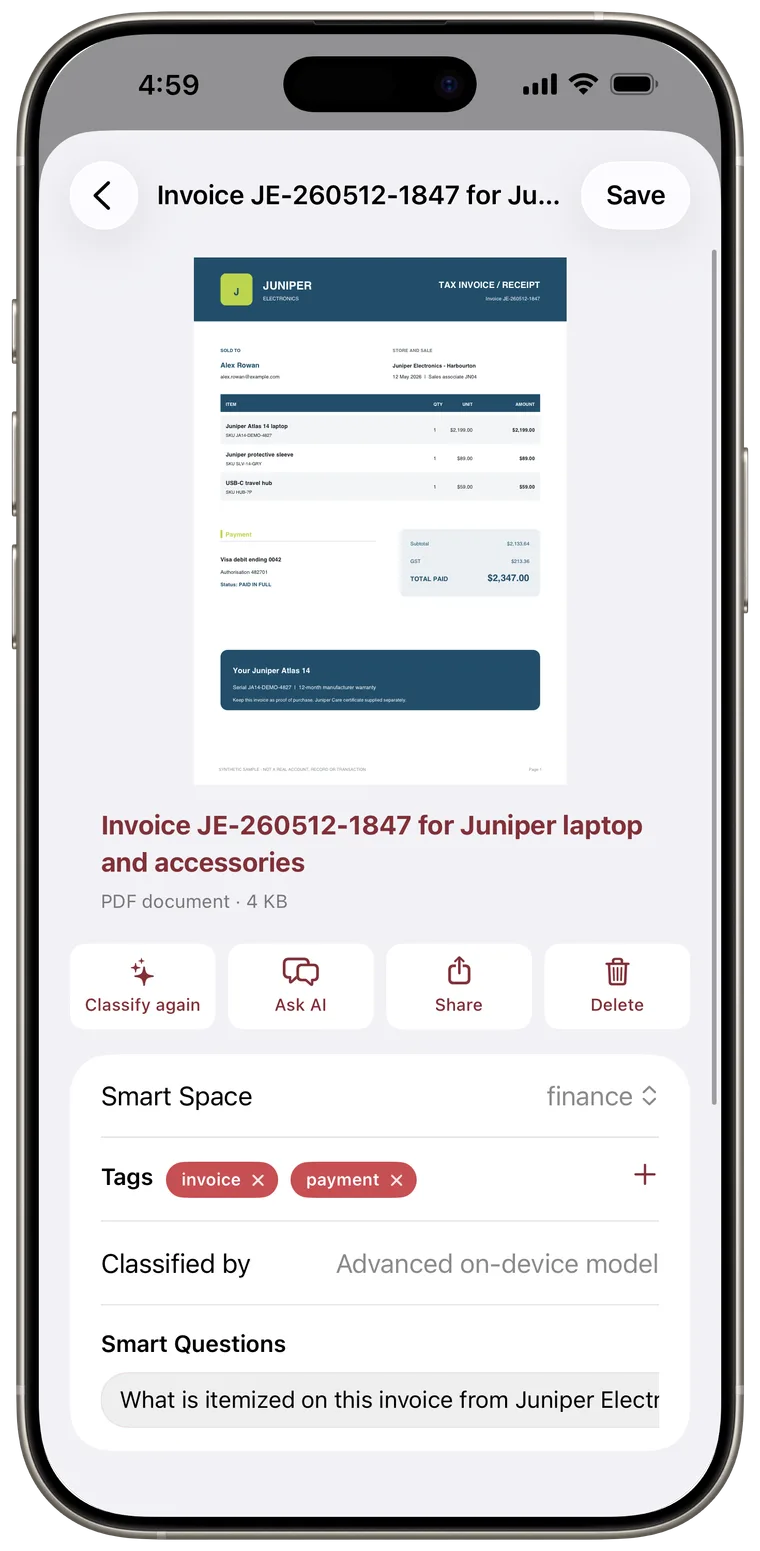
Document details begins with a preview and the editable document subject. Tap the preview to open the original file.
The action row can include:
- Classify again to re-run analysis. The current Smart Space, subject, and tags may be overwritten.
- Ask AI to ask about only this document.
- Share to send the original file through the iOS share sheet.
- Delete to permanently remove the document.
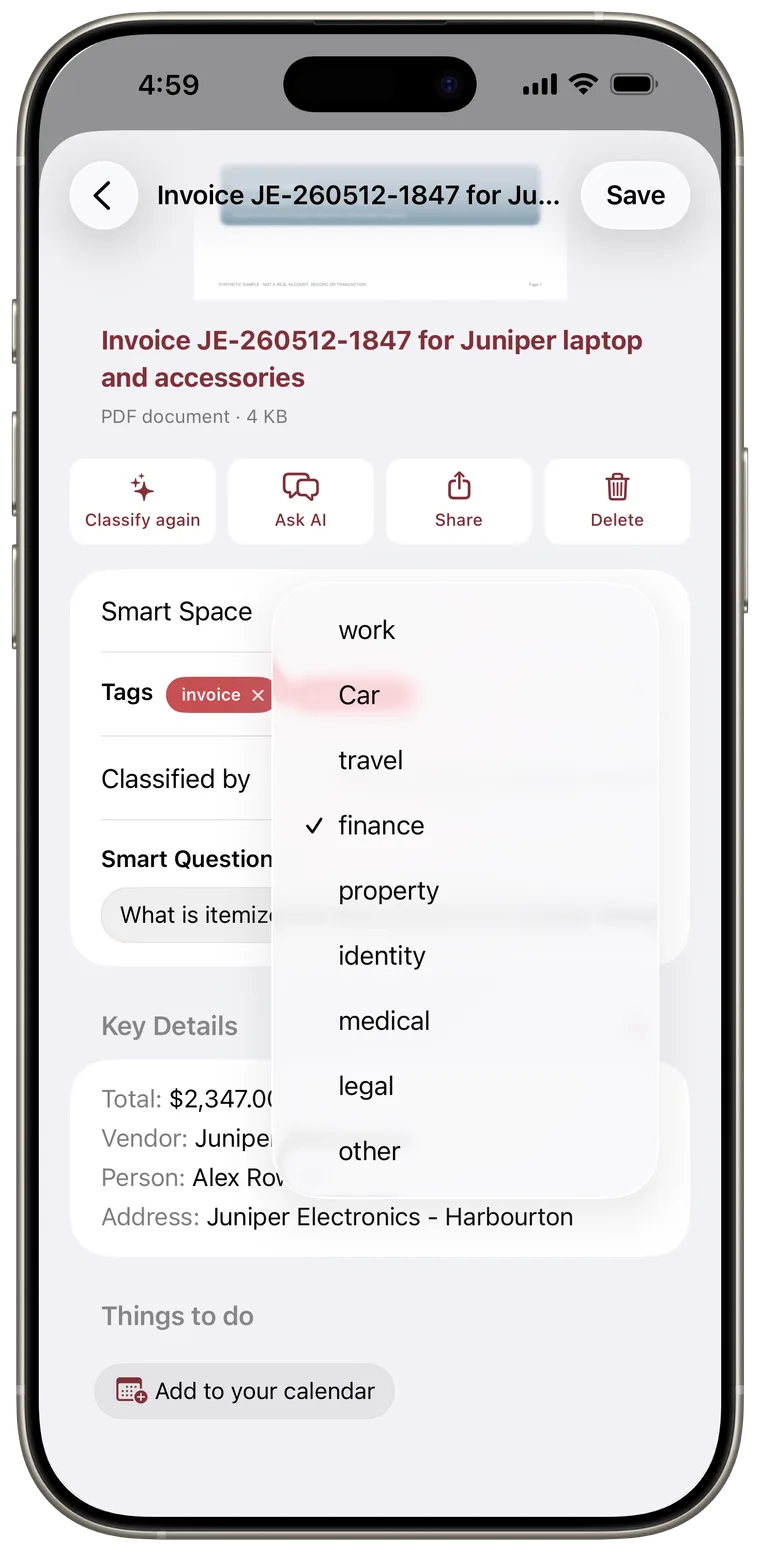
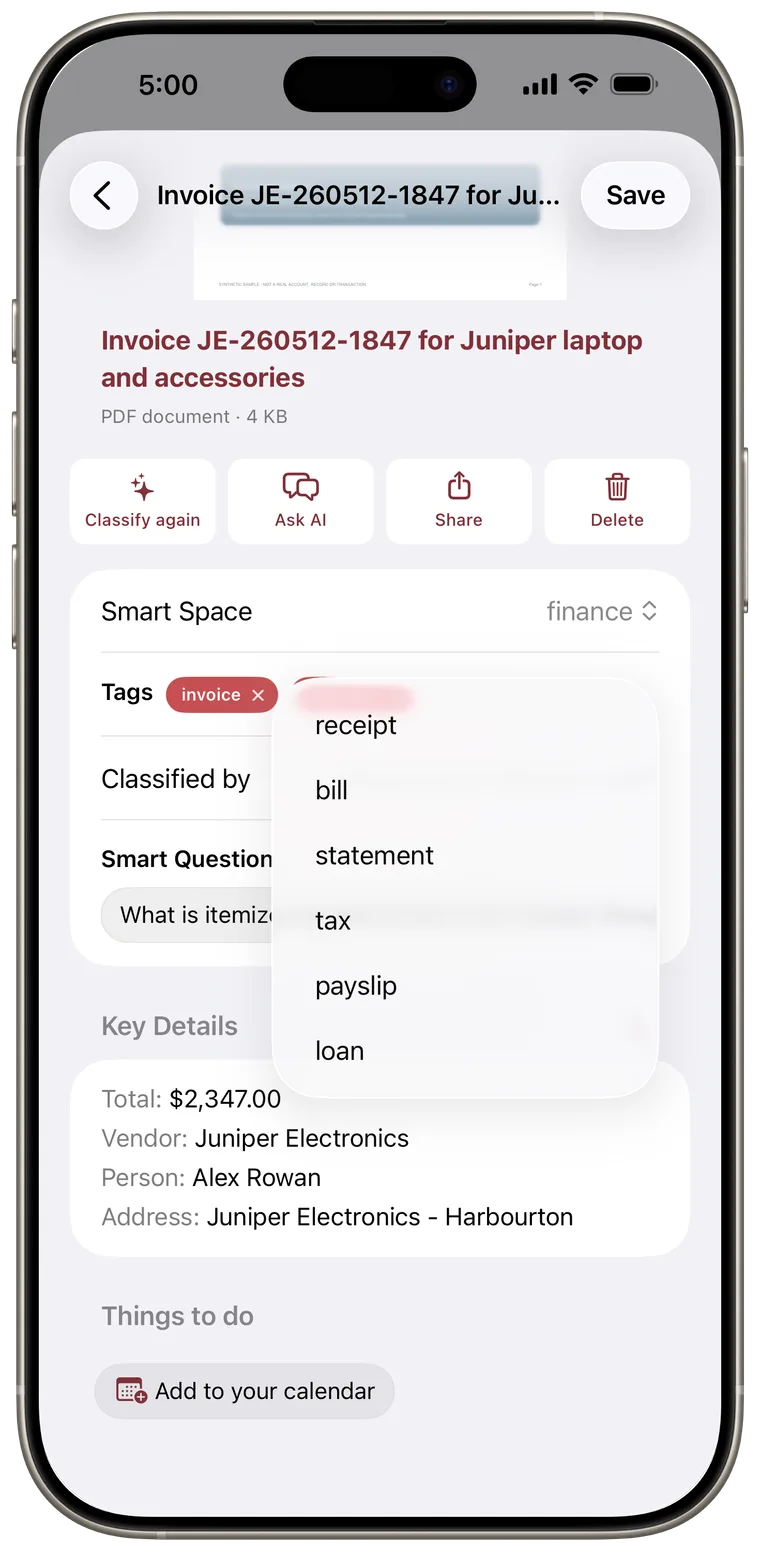
Correct classification
- Edit the subject at the top if the document title is unclear.
- Choose the correct Smart Space.
- Remove an incorrect tag, or tap + to add another tag available in that space.
- Tap Save or accept the review when finished.
Changing Smart Space clears the current tags. After saving, Cella can derive tags from the new space again.
Edit key data
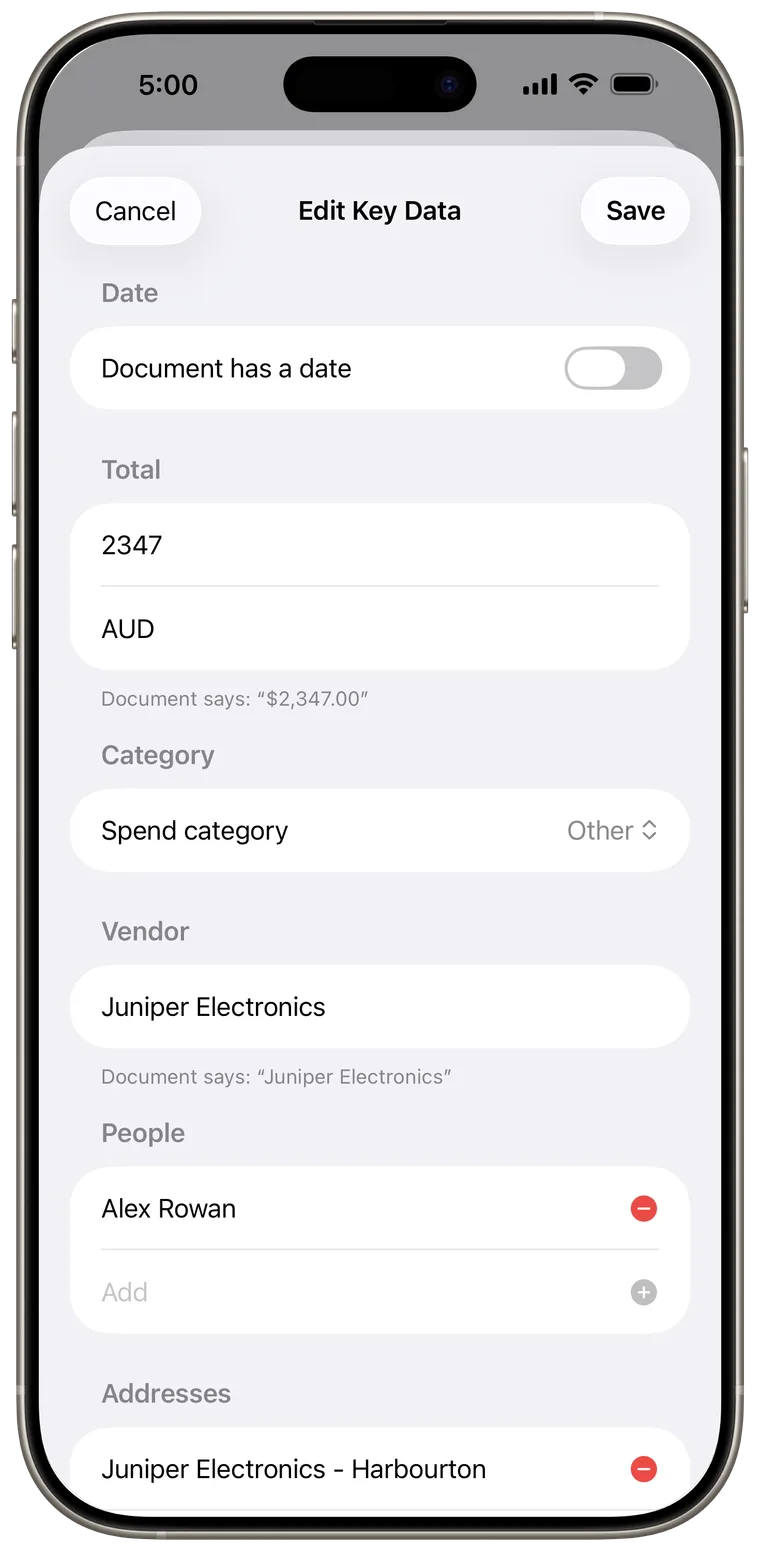
Under Key Details, tap the edit button. You can correct:
- document date
- total amount and currency code
- spend category
- vendor or issuer
- people
- addresses
Tap Save to apply the changes. User-edited fields are kept when later extraction runs again.
Good to know: Use a three-letter currency code such as USD, EUR, GBP, or AUD. Cella keeps different currencies separate and does not convert them.
Edit things to do
Under Things to do, tap a task to edit its description or due date. You can also delete an item that Cella found by mistake.
If there is no task, tap Add to your calendar to create one. Enter a description, choose whether it has a due date, then tap Save.
Use Smart Questions
When Smart Questions are available, tap one to open document-specific Ask AI and send it. Suggestions depend on the key details Cella found, so not every document has them.