Settings
AI Engine
Choose Apple Intelligence, an advanced on-device model, or a configured cloud provider.
Understand the engine choices
An AI engine organizes documents, extracts useful details, and answers Ask AI questions. Each vault chooses an active engine.
- Apple Intelligence runs through supported iPhone system models.
- Advanced On-Device Model downloads into Cella and runs on supported hardware.
- A cloud provider uses your own provider account and API key. Cloud providers are available on Max.
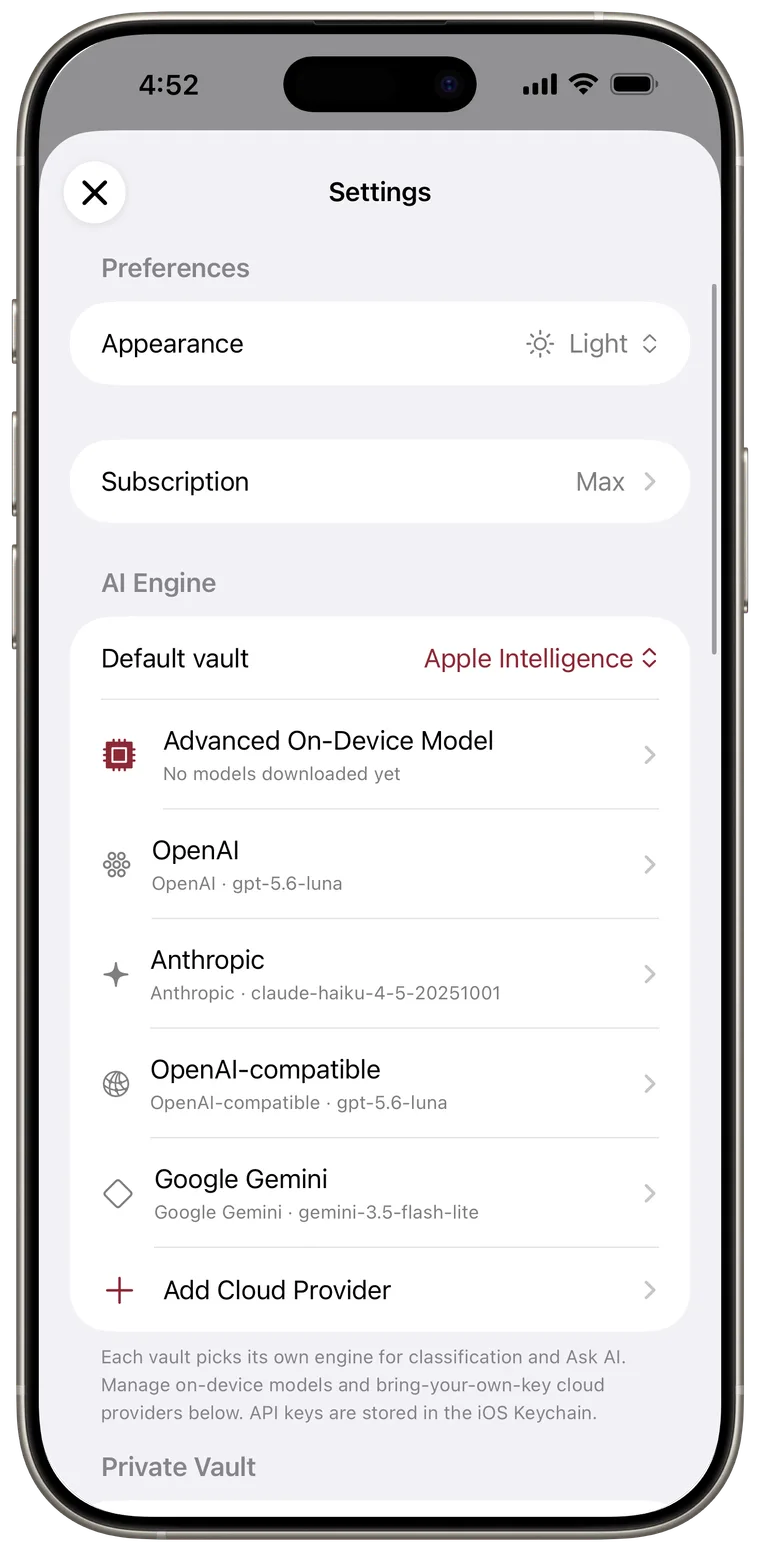
Choose the Default vault engine
- Open More > Settings > AI Engine.
- Tap Default vault.
- Choose an available engine.
- Confirm if Cella warns that documents will be sent to a cloud provider.
The Ask AI header shows the active engine when you start a conversation.
Set up Apple Intelligence
If Apple Intelligence is not ready, Settings shows its state: Off, Activating, Unavailable, or Check setup.
Tap How to enable a model when no engine is available. Cella can guide you to iPhone Settings > Apple Intelligence & Siri. Apple Intelligence requires iOS 26 or later, eligible hardware, and the system model fully prepared.
Download an advanced on-device model
- Tap Advanced On-Device Model.
- Optionally tap Change Folder and choose an external folder for model storage.
- Tap Download beside an available model.
- Keep the screen open to watch progress. You may cancel during download.
- Return to AI Engine and select the installed model.
An installed model row shows its storage size. Tap Delete to remove it. If it was active, Cella reconciles the engine choice so the vault is not left pointing at a missing model.
If a model may exceed the iPhone's memory, Cella warns before download. The iOS Simulator cannot run advanced on-device models.

Add a cloud provider
Cloud providers require Max and a network connection.
If you do not have a provider key yet, follow the guide for your account:
- Tap Add Cloud Provider.
- Choose Anthropic, OpenAI, Google Gemini, or OpenAI-compatible.
- Enter a display name and API key.
- For an OpenAI-compatible provider, enter its base URL and any optional API version.
- Tap Choose model to load models available to the key, or use Enter model ID manually.
- Tap Test connection.
- After the test succeeds, tap Save.
Testing verifies authentication, structured output, and the model's chat tool support. Saving without a successful test is allowed, but the provider row may show a warning when its key is missing or unusable.
Good to know: API keys are stored in the iOS Keychain. When a vault uses a cloud provider, relevant document content goes directly from your iPhone to that provider under its terms. It does not pass through a Cella server. Use an HTTPS endpoint for a custom provider whenever possible.
Edit or delete a provider
Tap a provider row to change its display name, model, endpoint details, or key and test again. The provider kind cannot be changed after it is saved.
Swipe a provider row to delete it. If a deleted provider was active, the Default vault moves to Apple Intelligence when available and the Private Vault returns to its inherited engine choice.
Understand fallback messages
Settings explains common engine problems below a selection:
- Apple Intelligence is off, activating, unsupported, or needs a newer iOS version.
- An advanced model is not downloaded or its folder cannot be reached.
- A cloud provider was deleted or is missing its API key.
Fix the stated problem or choose another available engine.