Organize and Find
Smart Spaces and tags
Create and manage the categories and tags Cella uses to organize documents.
Understand Smart Spaces
Smart Spaces are the main categories in a vault. Cella can assign a document to one space during classification. Each space can also define up to eight tags that describe documents inside it.
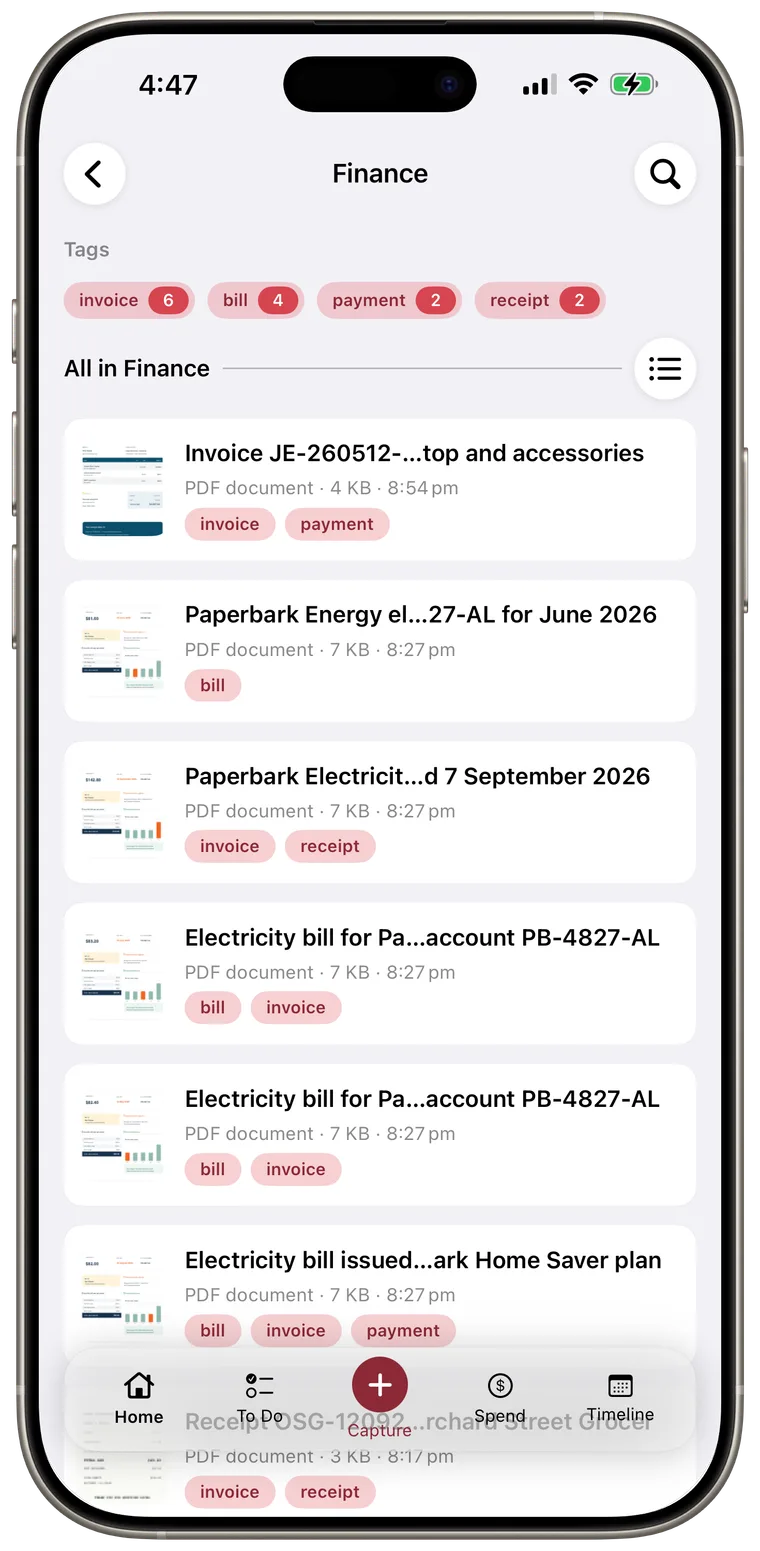
Tap a Smart Space tile on Home to see its documents. The space order on Home matches the order in the Spaces management screen.
Open space management
Use either path:
- On Home, tap the sliders button beside Smart spaces.
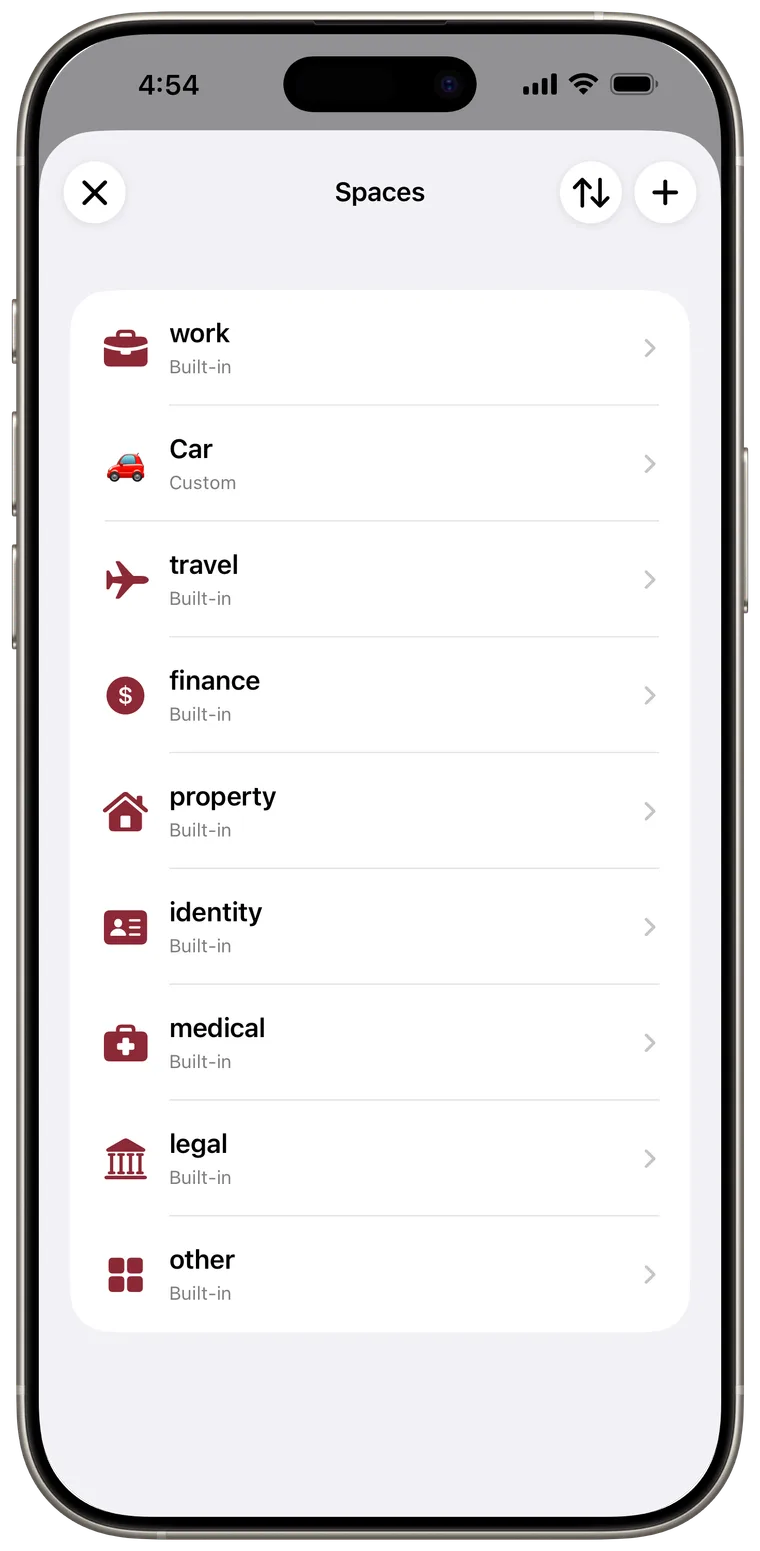
- Open More > Settings > Classification > Spaces.
Create a custom space
- Open Spaces and tap the + button.
- Enter a clear Name.
- Choose an icon. Cella suggests one from the name, but you can choose another.
- Add an optional AI hint with short examples of what belongs there and what does not.
- Add up to eight optional tags.
- Tap Save.
- Choose Classify again if you want existing, non-user-edited documents checked against the new space, or Skip to use it only going forward.
Your plan may limit how many custom spaces you can create. Built-in spaces do not count toward that limit.

Reorder spaces
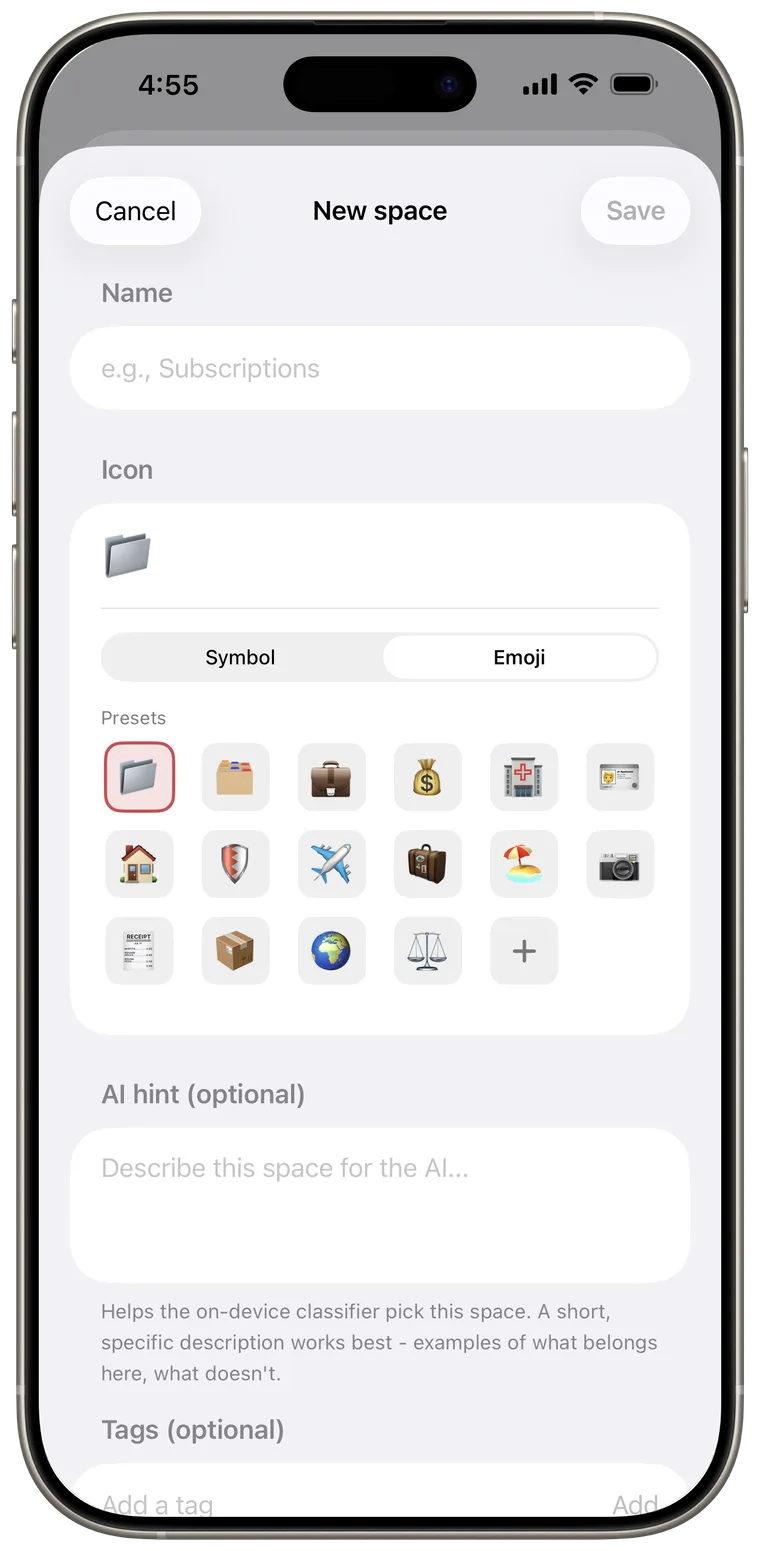
- Open Spaces.
- Tap the reorder button with the up and down arrows.
- Drag spaces into the order you want.
- Tap the checkmark when finished.
The new order is saved and used by the Home grid.
Hide or show a built-in space
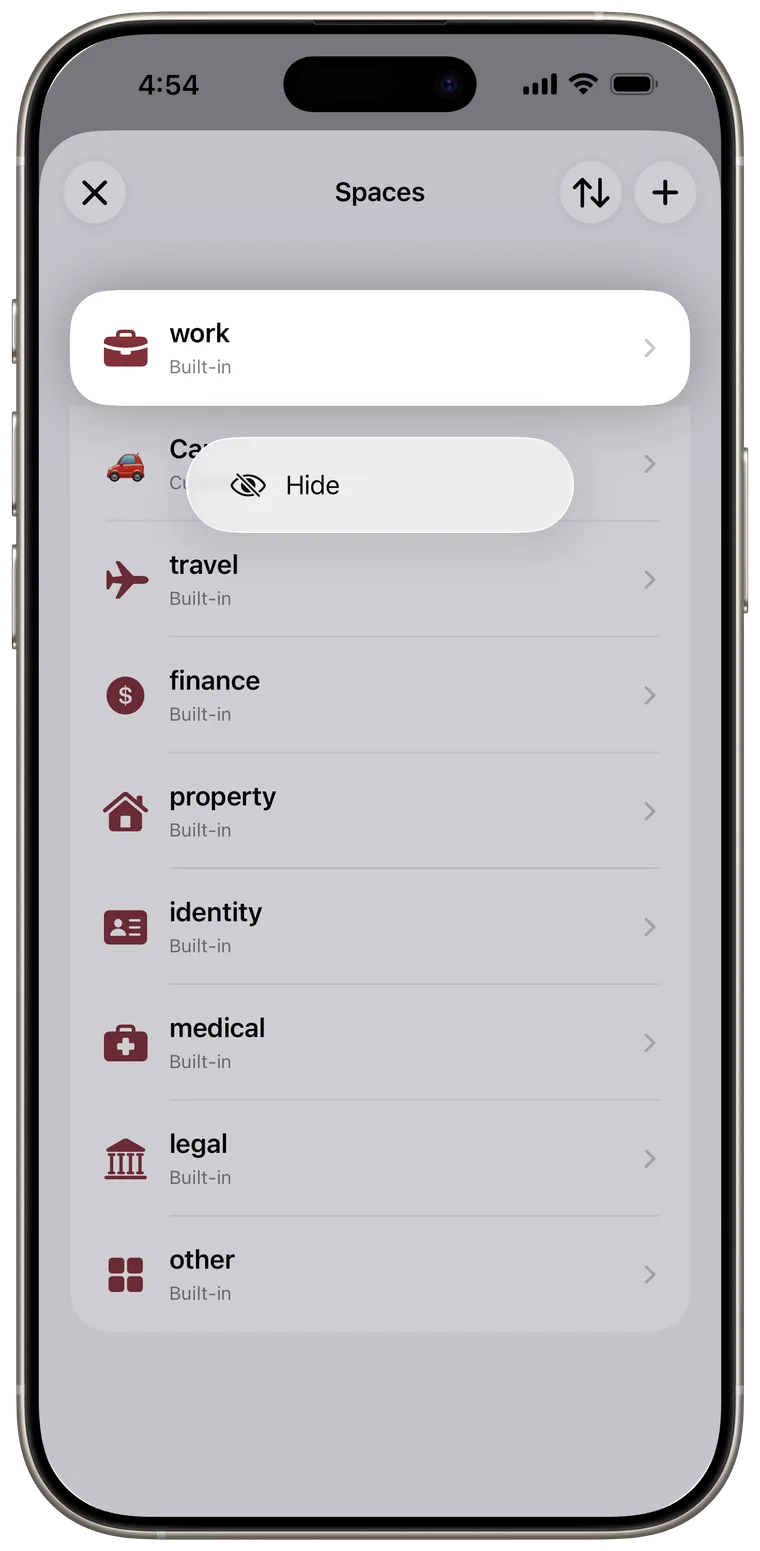
- Touch and hold a built-in space.
- Tap Hide.
A hidden space remains available to Cella but is removed from the normal Home grid. Touch and hold it again in Spaces and tap Show to restore it.
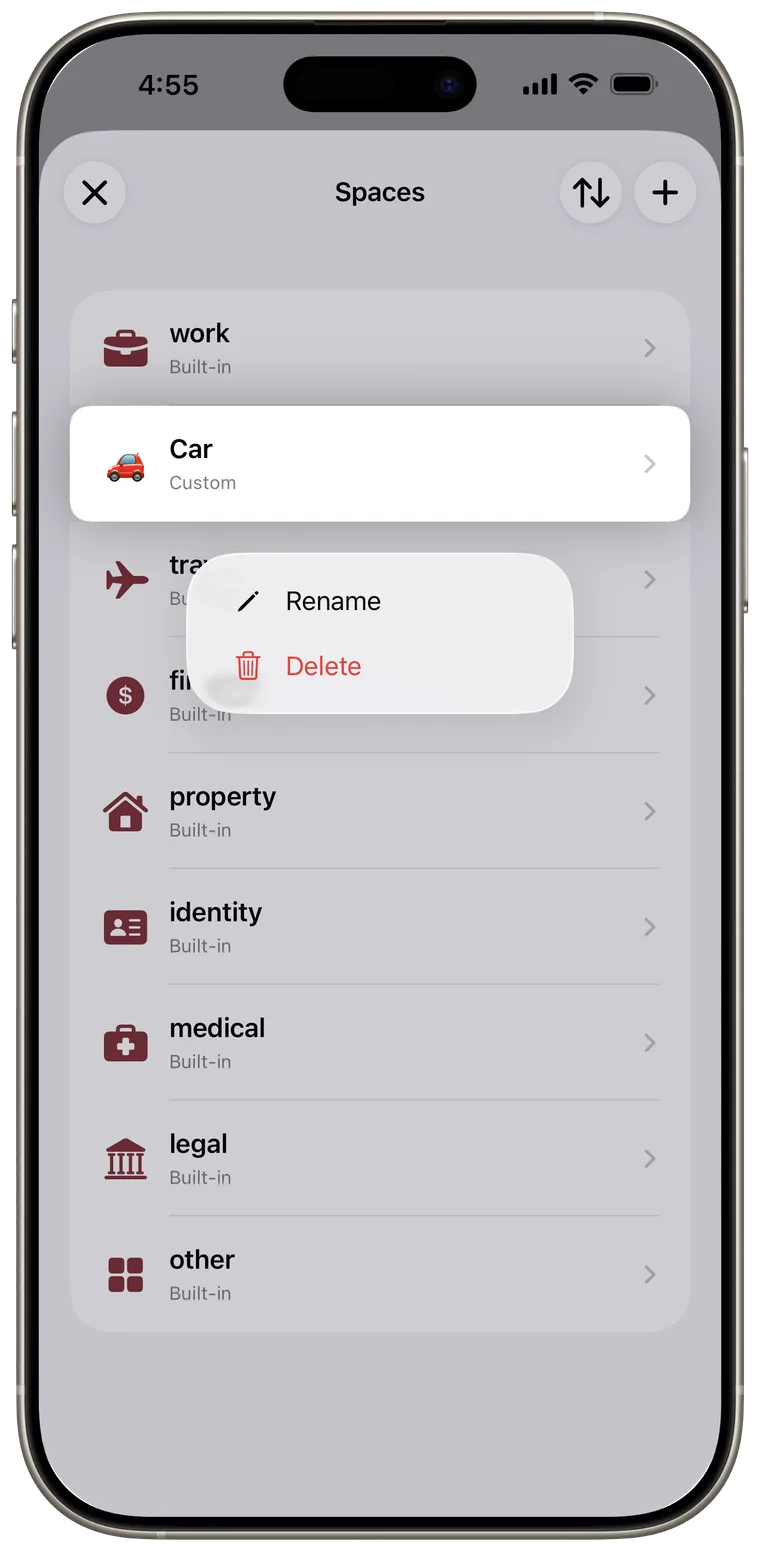
Rename or delete a custom space
Touch and hold a custom space, then choose Rename or Delete.
When deleting, choose what happens to affected items:
- Classify items again asks Cella to choose another space.
- Move to 'other' places them in the built-in Other space.
Documents you manually labeled keep their user tag.
Edit a space and its tags
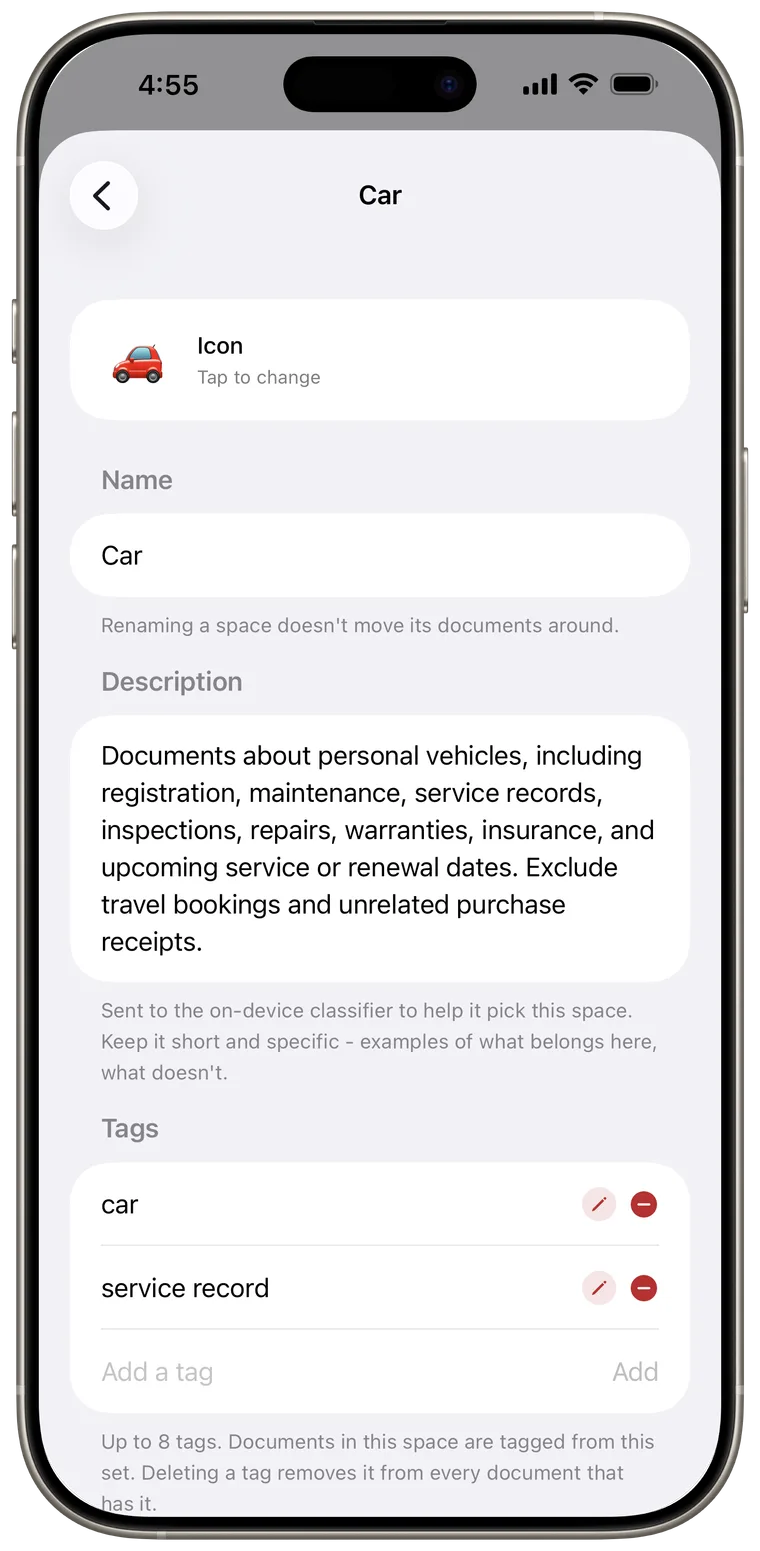
Tap a space row to open its details.
- Custom spaces let you change the icon and name.
- All spaces let you edit the Description sent to the classifier. Leave a built-in description empty to use its default.
- Under Tags, add, rename, or delete tags. Renaming updates every document using that tag. Deleting removes it from every affected document.
- A custom space also has a Delete space action at the bottom.
Good to know: A space description guides future classification; it does not immediately move existing documents.
Share a space
You can share any non-sensitive space in the Default vault, including built-in and filter-based spaces. Open the space in Spaces, tap Share space, and copy or send its Cella invitation link from the sharing screen. Links use cella-ai.com and open Cella to join using iCloud. Creating a new share requires Plus or Max. Accepting an invitation is available on every plan, and an existing share keeps syncing and can still be managed after the owner downgrades.
Recipients need Cella installed and an iCloud account. If the invitation opens in a browser, tap Open in Cella. If needed, install Cella first and then reopen the original invitation. Test invitations open Cella Test and require the matching TestFlight build. An invalid link asks you to request a fresh invitation from the owner; Cella does not redirect invitations to the iCloud website.
- View only participants can read, search, ask questions, and export a copy.
- Can edit participants can add, edit, move, and delete documents in that space.
- Only the owner can change the space definition, invite or remove people, change permissions, or stop sharing.
The shared badge on Home shows that a space is shared. An iCloud warning badge means Cella is showing the last synchronized copy while the account or network is unavailable. Pending invitations do not appear on Home until they are accepted.
Sharing follows the space automatically. Moving a document into a shared space publishes it to that space's participants; moving it out removes that access on the next sync. Private Vault and sensitive spaces never offer sharing.
The owner can stop sharing or remove one participant, and a participant can leave. Cella removes the affected local shared copy on the next sync. Revocation is best effort: copies already downloaded may remain until that device syncs, and files exported earlier are outside Cella's control.