Organize and Find
Home and heads-ups
Learn what appears on Home and how to act on useful reminders.
Know what you are looking at
Home always shows one vault at a time. The word Private appears beside the Cella name when the Private Vault is open. Use More (the three dots) and tap Switch to Private or Switch to Default to change vaults.
The main sections appear only when they have something useful to show:
- Heads up shows dates, unusual bills, or expected recurring bills that may need attention.
- Tag buttons filter documents that share a label. Tap All tags when there are more than ten common tags.
- Smart spaces groups documents by purpose, such as Finance, Property, or Travel.
- Recently added shows your newest items.
- Uncategorized holds items that do not yet belong to a Smart Space.
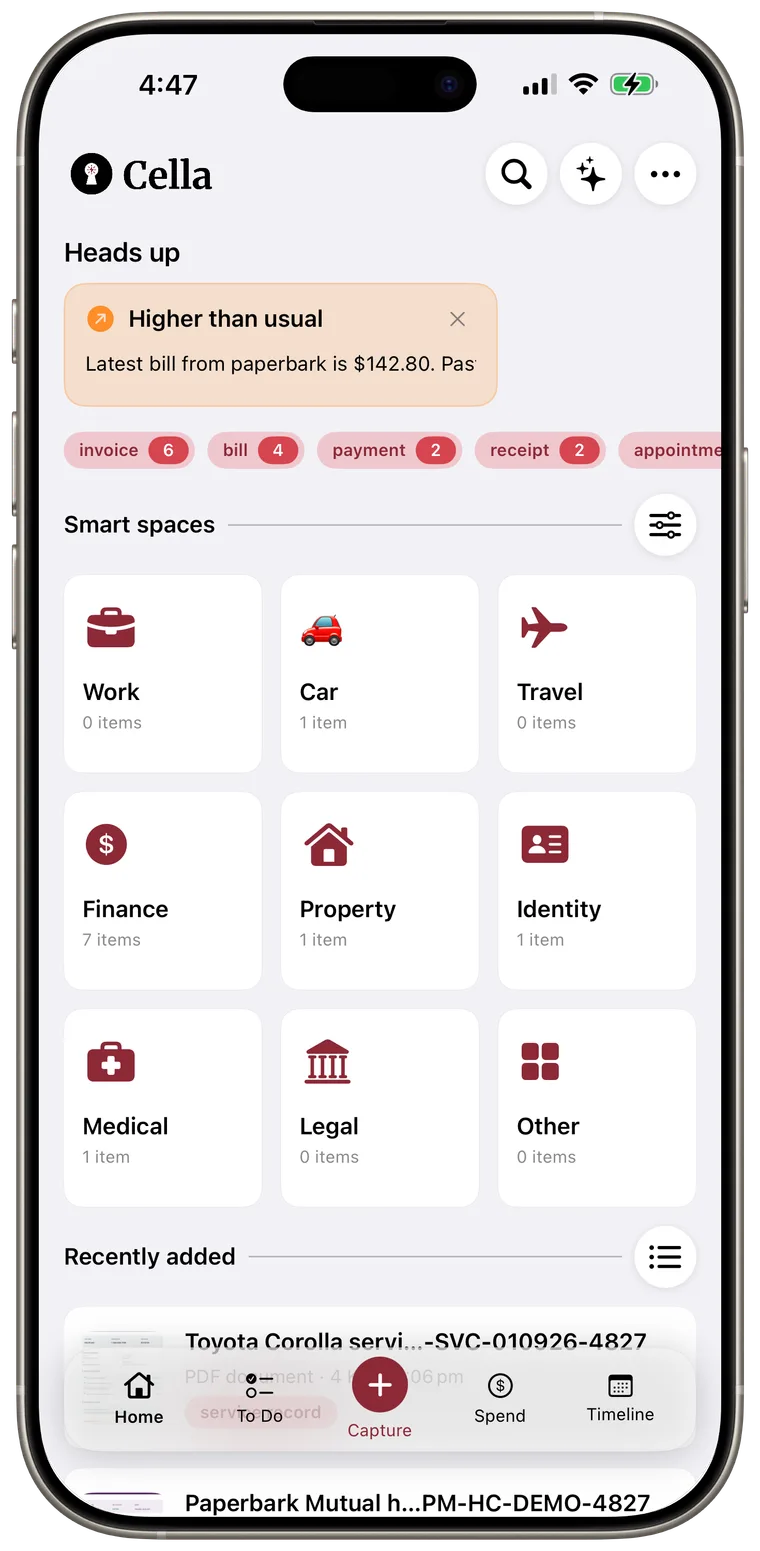
Use a heads-up
- Tap a heads-up to open its source document.
- Tap the x to dismiss it from Home.
- Touch and hold an upcoming due-date heads-up to edit or delete its to-do.
- Touch and hold another type of heads-up and tap Don't show again if you do not want that reminder to return.
Good to know: Dismissing a heads-up hides that reminder. It does not delete the document. Use More > Reset heads-ups if you want Cella to check the current vault again and recreate eligible reminders.
Open a Smart Space or tag
- Tap a Smart Space tile to see the documents inside it.
- Tap a tag near the top of Home to see matching documents.
- Tap a document row to view and edit its details.
- Use the list button beside a document section when you want to select several documents for a bulk action.
Use the main controls
- Tap Search at the top to find documents in the current vault.
- Tap Ask AI to ask a question across the current vault.
- Use Home, To Do, Spend, and Timeline in the bottom bar to change views.
- Tap Capture to add a file, photo, camera image, voice note, or pasted text.