Settings
Private Vault and Classification
Configure Private Vault security and control how confident classification must be.
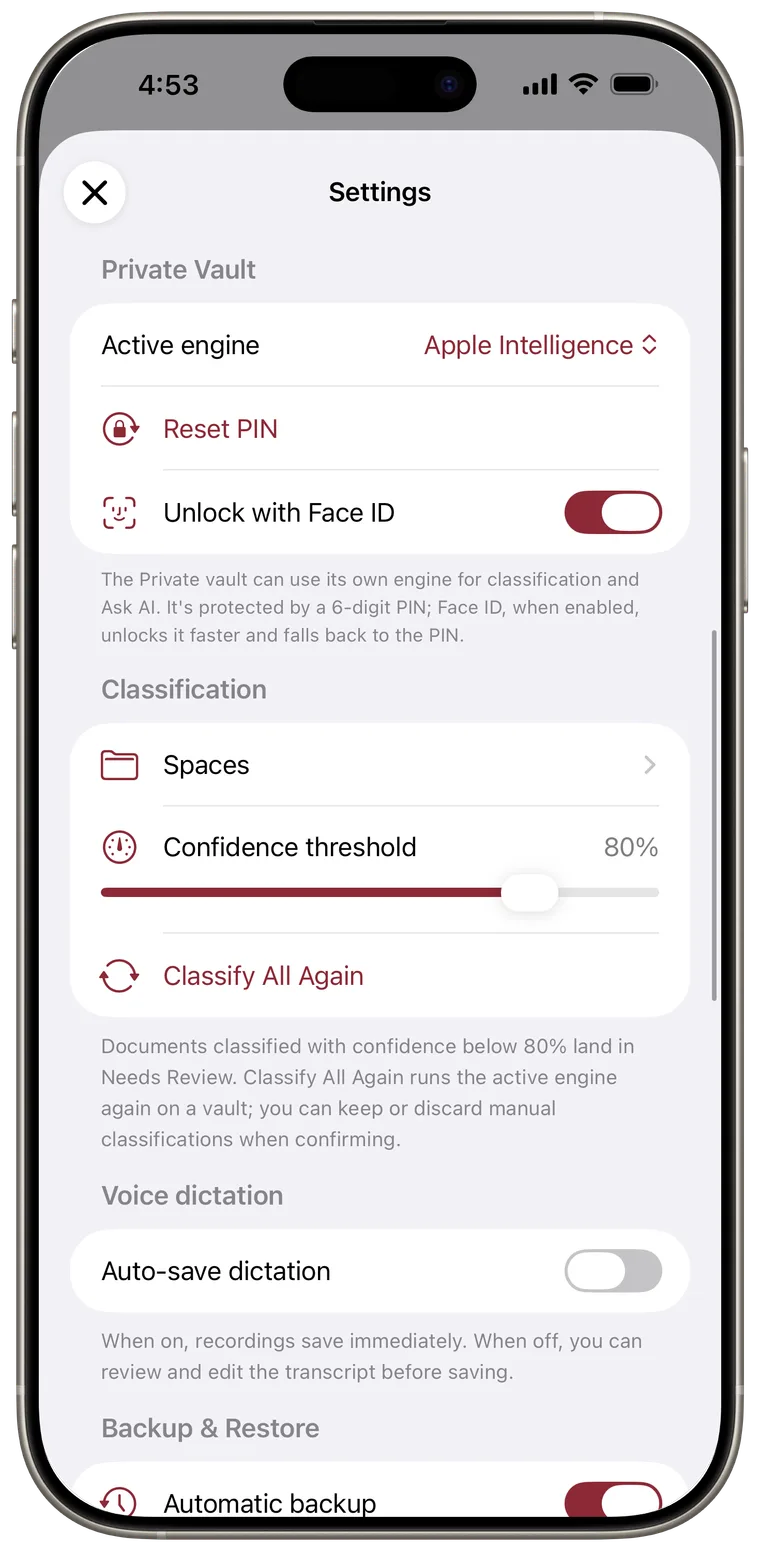
Choose the Private Vault engine
Under Private Vault, tap Active engine. Choose Use Default vault's engine to inherit the Default choice, or select another available engine.
The Private Vault engine applies to its classification and Ask AI. A cloud choice requires confirmation because Private Vault documents will be sent directly to that provider.
Reset the Private Vault PIN
The security controls appear after a Private Vault PIN exists.
- Tap Reset PIN.
- Enter the current PIN.
- Enter a new six-digit PIN.
- Enter it again to confirm.
After enough incorrect attempts, Face ID recovery may be offered on supported devices.
Turn Face ID on or off
- Turn on Unlock with Face ID.
- Enter the Private Vault PIN to authorize the change.
- Complete the Face ID permission prompt.
The switch turns on only after Face ID succeeds. Turning it off keeps PIN unlock available.
Manage classification spaces
Under Classification, tap Spaces to create, reorder, edit, hide, show, rename, or delete Smart Spaces and their tags. See Smart Spaces and tags for the full workflow.
Set the confidence threshold
Use the Confidence threshold slider to choose how certain Cella must be before it files a document without asking you.
- Raise it to send more documents to Needs Review.
- Lower it to accept more AI classifications automatically.
The value changes in five-percent steps. This setting affects future classification decisions.