Settings
Backup and Restore
Protect both vaults with automatic or manual encrypted backups and restore them when needed.
Why backup matters
Cella's working vault lives on your device. Losing the device or deleting the app can remove local data, so keep backups somewhere that survives the device.
Backups contain both vaults, their documents, the database, Smart Spaces, tags, and configured cloud-provider material in one encrypted file.
Received shared-space documents, invitations, participant details, and live sharing credentials are excluded. Restoring a backup does not recreate an active share. Export an individual shared document if you need a separate copy.
Use Automatic Backups
Automatic backups are optional and off by default on new installations. They create encrypted recovery snapshots for rollback and portability.
- Open More > Settings > Backups.
- Turn on Automatic Backups.
- Enter and confirm a password that meets the displayed requirements.
- Choose an external folder in iCloud Drive, another cloud-storage app, or another location outside Cella.
- Tap Enable Automatic Backups.
Cella checks for a changed, stale vault when the app enters or leaves the foreground. It does not run as an independent scheduled service while Cella is never opened. It keeps the three most recent automatic backups in the chosen destination.
The Last backup row shows the most recent success or a failure message.
Existing installations that already had automatic backup enabled continue using their generated key and current folder. If you turn it off, turning it on again requires a password and external folder like a new setup.
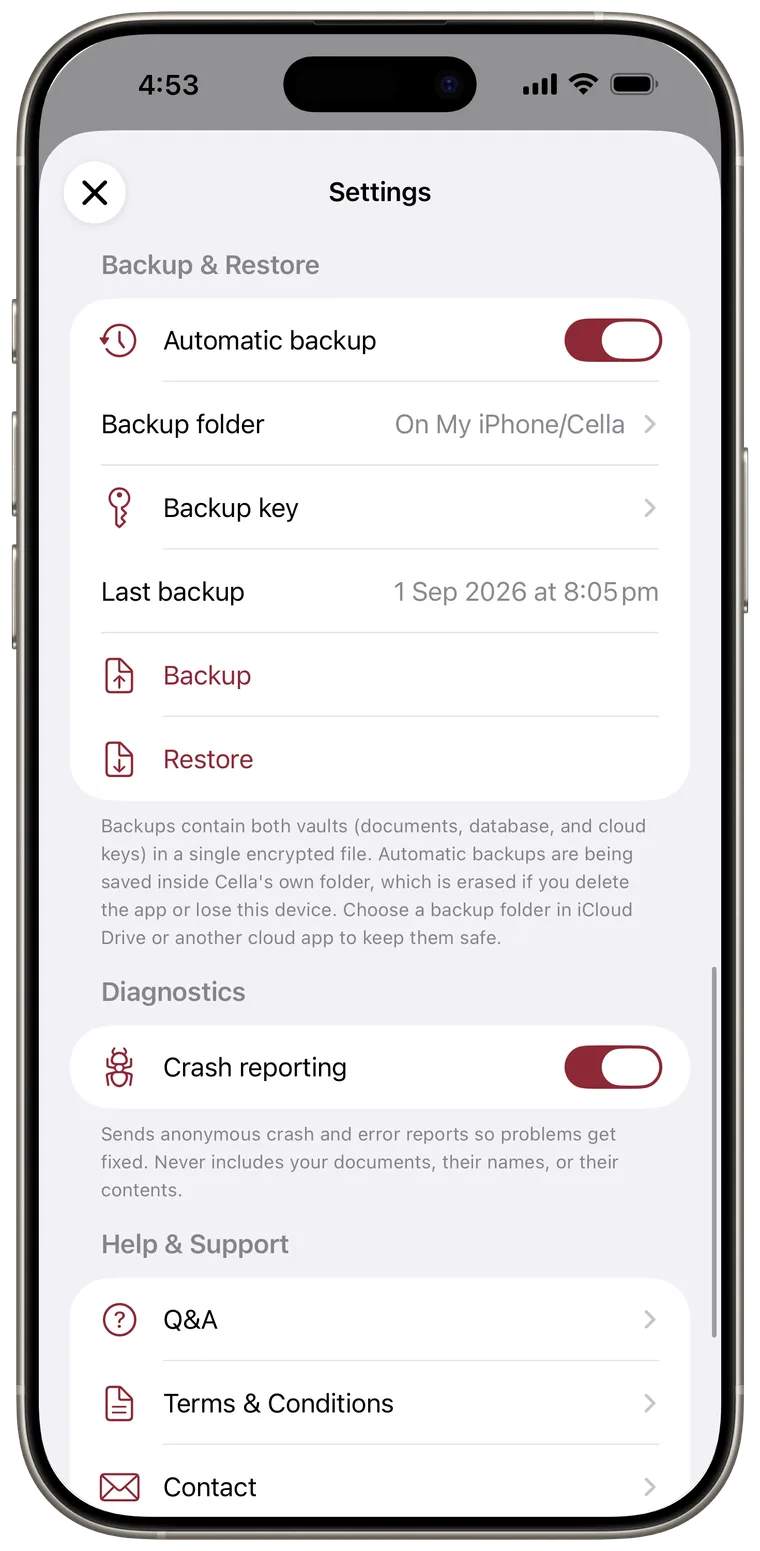
Change or unlink the folder
Under Backup Folder:
- Tap Change Folder to choose or relink an external folder.
- Existing grandfathered configurations can tap Use Default Folder to return to Cella's internal folder. New and re-enabled configurations always require an external folder.
If a linked folder cannot be reached, automatic backup pauses until you choose it again.
View the automatic backup password
New automatic backup configurations use the password you chose. Existing configurations may use a generated key stored on this device only.
- Tap Backup password.
- Tap Show Password.
- Authenticate with Face ID or the device passcode.
- Tap Copy Password or Share Password.
- Store it outside this device, ideally in a password manager.
If an existing configuration uses a generated key, save it outside the device. Automatic backup files cannot be opened without the password or generated key that created them.
Create a manual encrypted backup
- Tap Backup.
- Enter and confirm a password of at least ten characters that mixes letters, numbers, and symbols.
- Tap Create Encrypted Backup.
- Use the system share sheet to save the resulting file.
Keep the password separately. Cella cannot recover a forgotten backup password.
Restore a backup
- Tap Restore.
- Tap Choose Backup File and select a Cella backup.
- Enter the password that created the backup, or the saved generated key for an older automatic backup.
- Tap Restore Backup.
- Read the overwrite warning, then tap Restore to continue.
Restore merges the backup into the current installation. Matching documents and files are overwritten by the backup versions. The action cannot be undone, so create a current backup first when practical.
Restore requires a backup format compatible with the installed Cella version.