Organize and Find
Search and Ask AI
Find documents or ask grounded questions across a vault or about one document.
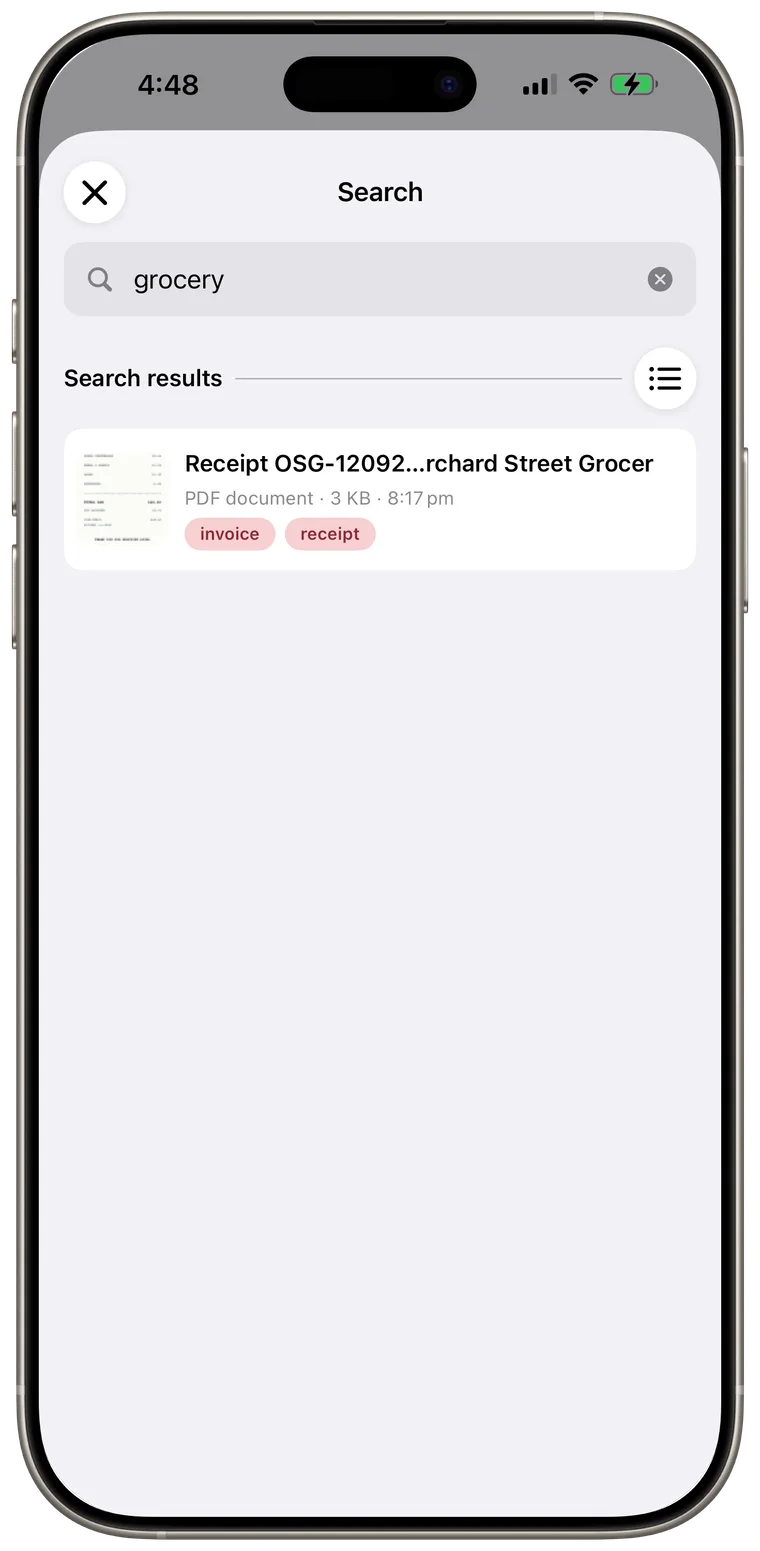
Search the current vault
- Tap the magnifying-glass button at the top of Home.
- Enter words or a natural phrase in Search your vault.
- Tap Search on the keyboard.
- Tap a result to open its details.
Search combines visible text and meaning when an item has been indexed. Results and row actions apply only to the vault you are currently viewing. Tap the clear button in the search field to start over.
Ask across a vault
- Tap Ask AI at the top of Home.
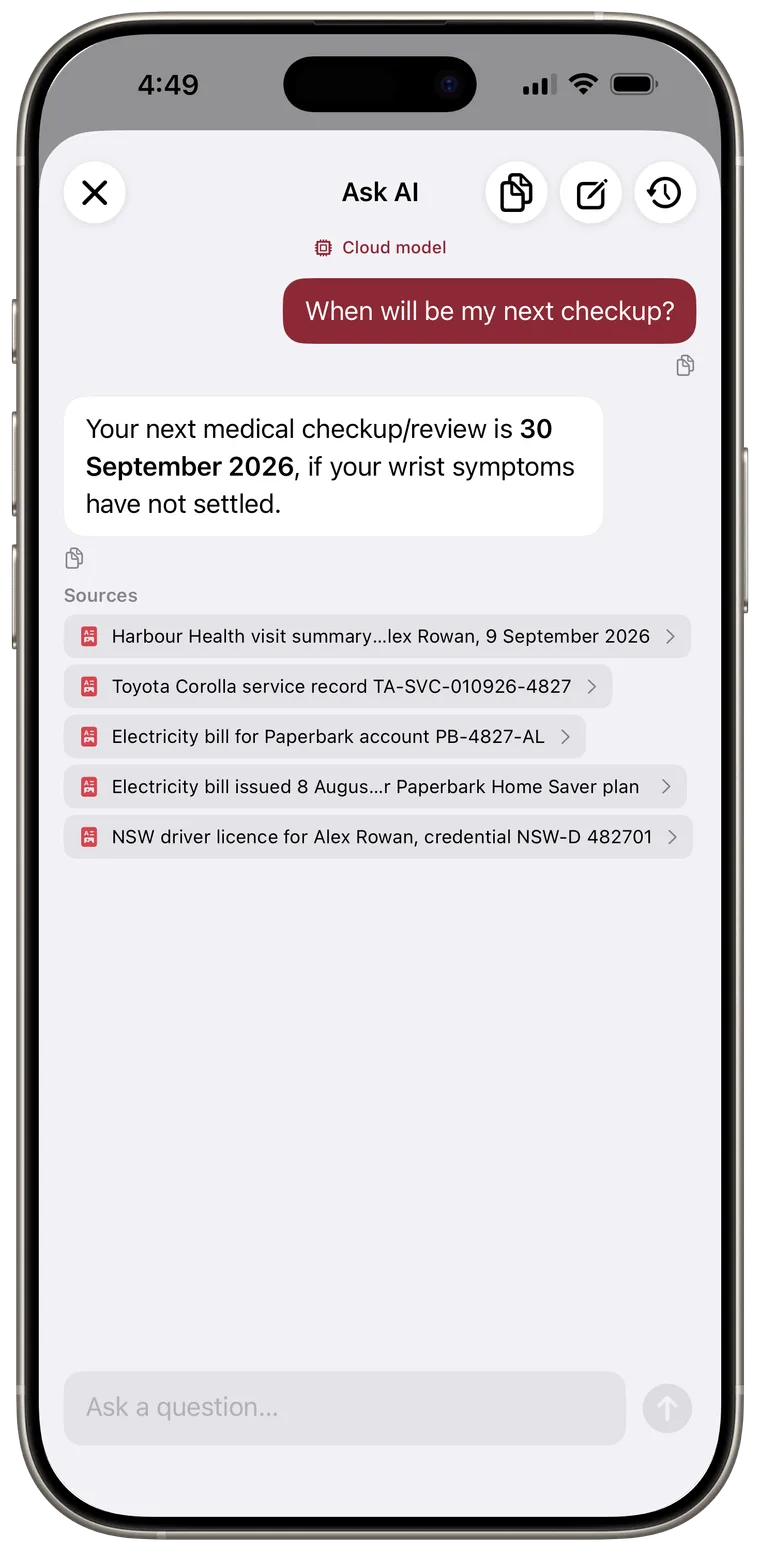
- Check the engine label above the conversation so you know what is answering.
- Type a question and tap Send.
- Read the answer and review any Sources shown below it.
- Tap a source to open the supporting document.
Vault-wide Ask AI searches indexed documents in the current vault. Free and Plus plans show the remaining questions for the selected engine; Apple Intelligence and advanced-model allowances are counted separately.
Accepted shared-space documents are included in Default-vault search and Ask AI without being reprocessed on the participant's device. If a selected engine sends data off the device, Cella asks for confirmation before shared content is transmitted. Declining keeps local reading and search available.

Ask about one document
Open document details and tap Ask AI. The Asking about chip confirms that the conversation is limited to that item.
If the document has Smart Questions, tap one to send it immediately. Per-document Ask AI is not counted against a vault-wide daily allowance.
Good to know: AI answers can be incomplete or wrong. Open the source document before relying on an important date, amount, instruction, or decision.

Copy or retry an answer
- Tap the copy button under one message to copy only that message.
- Tap the copy-conversation button in the header to copy the full conversation with You and AI labels.
- If a request fails and a retry button appears, tap it to send the same question again.
- Tap the conversation area to dismiss the keyboard while reading.
Start or manage chats
- Tap New chat in the Ask AI header to clear the current thread and start another.
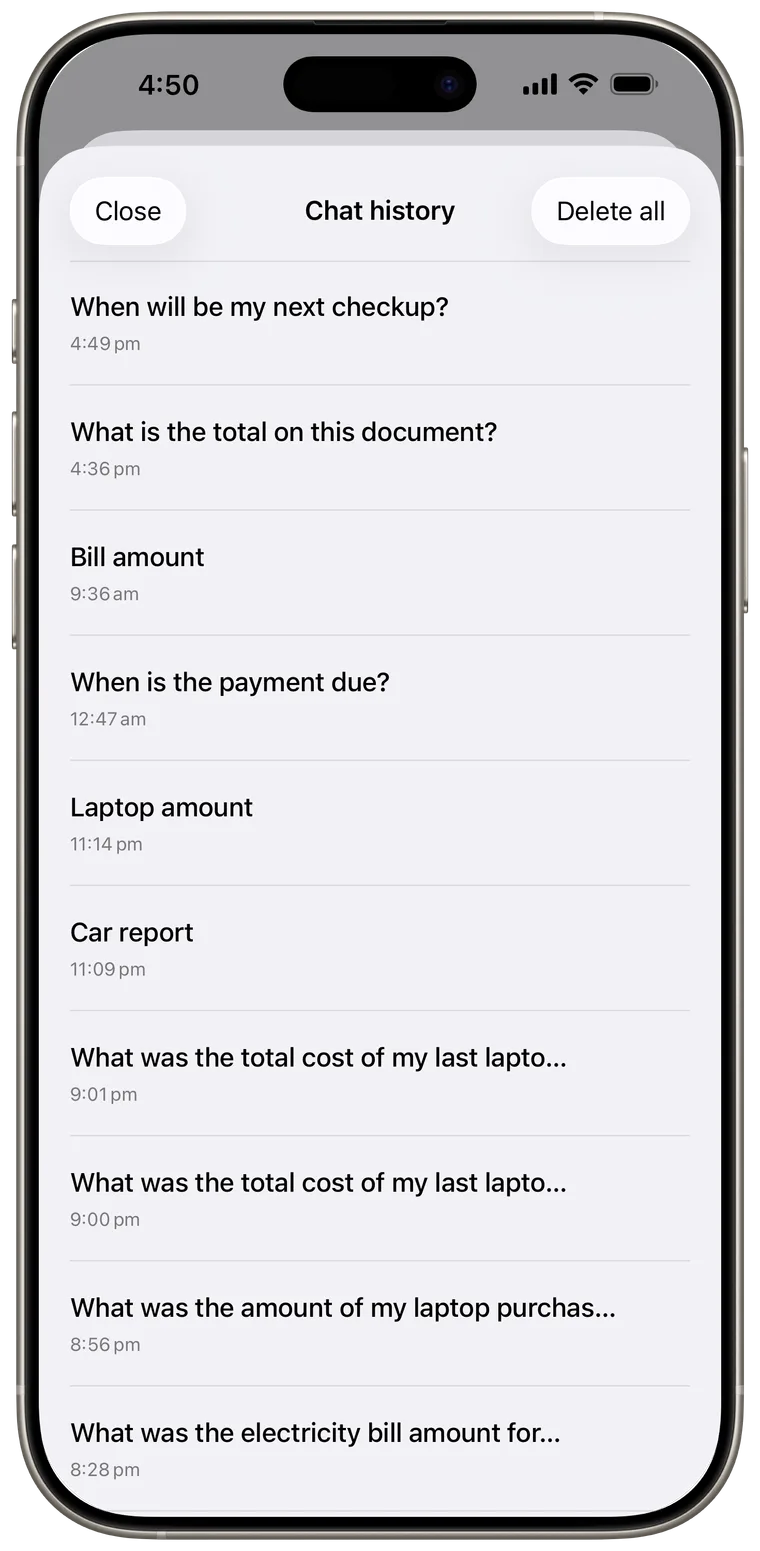
- Tap History to see saved conversations for the current vault.
- Tap a saved chat to resume it.
- Swipe a saved chat to rename or delete it.
- Tap Delete all to remove every saved chat in the current vault.
Deleting a chat does not delete its source documents.
When Ask AI is unavailable
The Ask AI screen explains what is missing and may offer a button to open Cella Settings or the iPhone Settings app. Common causes are:
- Apple Intelligence is off, still activating, unsupported, or requires a newer iOS version.
- The selected advanced model is not downloaded or its storage folder needs relinking.
- A cloud provider is missing its API key or cannot connect.
- No AI engine is currently available for the vault.