Work With Content
Private Vault
Keep sensitive documents in a separate, PIN-protected area with its own AI choice.
What the Private Vault does
The Private Vault keeps sensitive documents separate from the Default vault. It has its own document lists, searches, chats, heads-ups, rollups, and optional AI-engine choice.
Private Vault is available on Plus and Max plans.
Good to know: The Private Vault is a PIN-protected access gate and logical separation inside Cella. It is not a separately encrypted database. Vault files use iOS Data Protection like the rest of Cella.
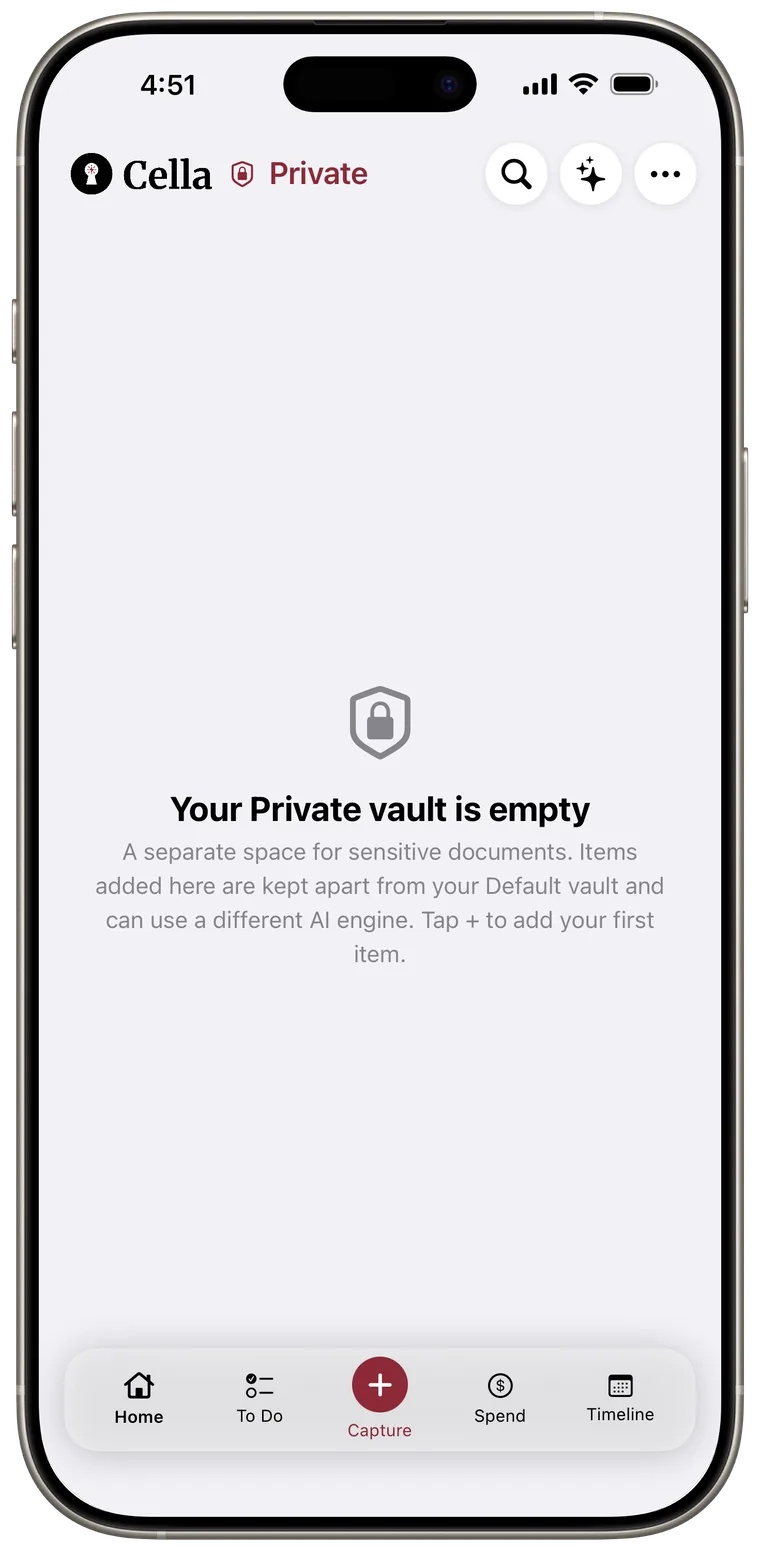
Enter for the first time
- On Home, tap More (the three dots).
- Tap Switch to Private.
- Create a six-digit PIN.
- Enter the same PIN again to confirm.
After setup, Private and a lock shield appear beside the Cella name whenever that vault is open.
Unlock later
Enter your six-digit PIN when Cella asks. If Face ID is enabled, Cella prompts for it first and leaves the PIN keypad available if Face ID is cancelled or fails.
After several incorrect PIN attempts, recovery actions appear:
- Use Face ID verifies your identity and unlocks without changing the PIN.
- Forgot PIN? uses Face ID to let you set a new PIN.
PIN recovery requires Face ID. There is no destructive erase shortcut.

Switch back to Default
Tap More > Switch to Default. Cella can lock the Private Vault again after the app has been away from the foreground, so you may need to unlock when returning.
Move documents between vaults
- Touch and hold a document row.
- Choose Save to.
- Tap Default or Private.
You can also select several documents and use the bulk Save to action. Documents cannot be moved while they are processing.
Choose a Private Vault AI engine
Open More > Settings > Private Vault > Active engine. Choose Use Default vault's engine or a different available engine.
If you choose a cloud provider, content from the Private Vault is sent directly to that provider for classification and Ask AI. Cella asks for confirmation before applying the cloud choice.
Manage security
Open More > Settings > Private Vault to:
- Reset PIN after verifying the current PIN.
- turn on Unlock with Face ID after PIN verification and the Face ID permission prompt.
- turn Face ID off while keeping the PIN.
If your plan later loses Private Vault access, Cella returns to Default without deleting the private documents. They become available again when the feature is restored.