Settings
App support and information
Control crash reporting, read help and legal information, contact support, and check the app version.
Control crash reporting
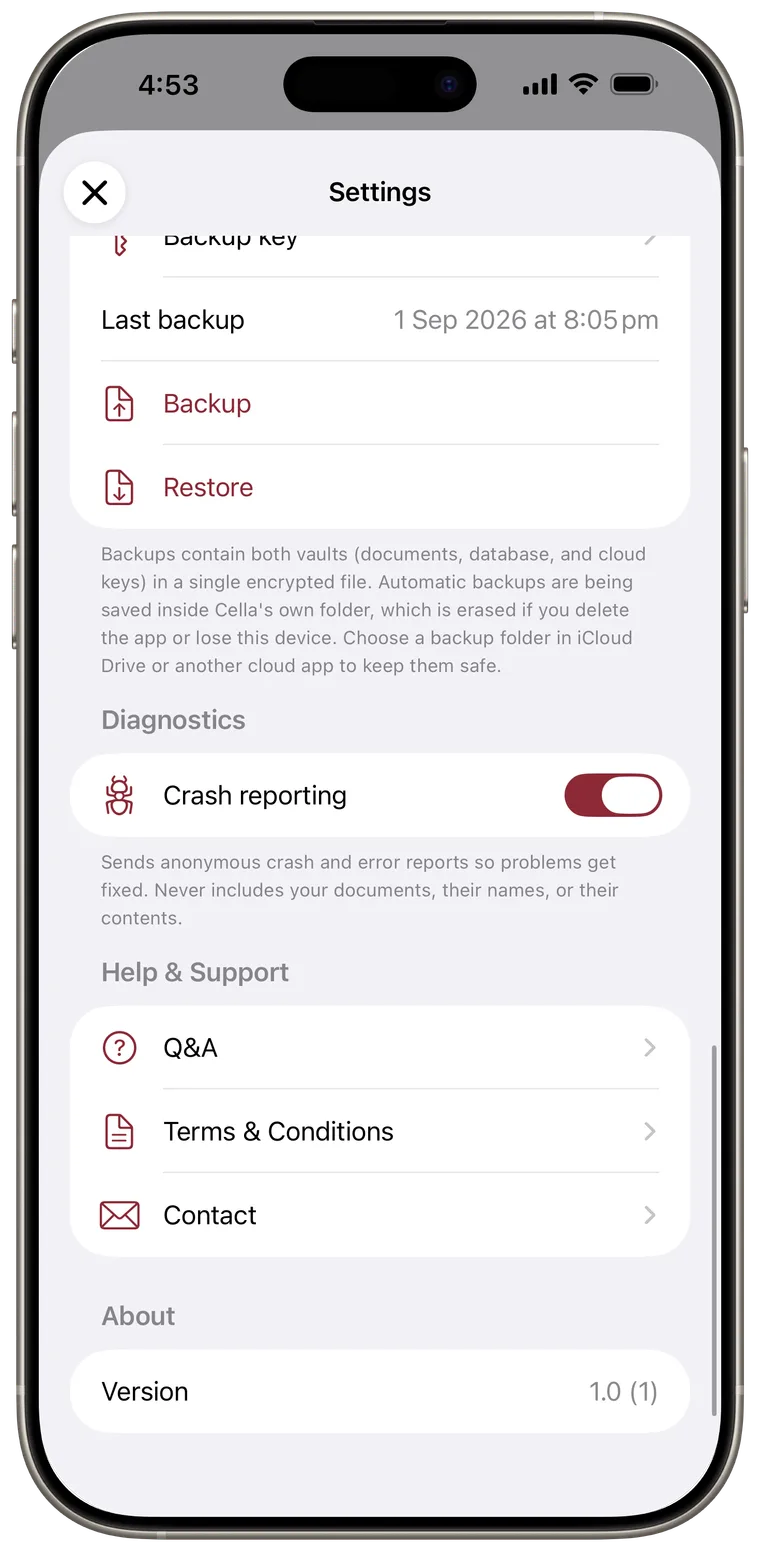
Under Diagnostics, use Crash reporting to turn technical reports on or off.
Reports help diagnose crashes and processing failures. They do not include document contents, document names, or file paths. The setting takes effect immediately.
Open the User Manual
Under Help & Support, tap User Manual. Cella opens this manual in your browser. The app uses a stable website link so the manual can move without breaking the link in an installed version of Cella.
Read common questions
Under Help & Support, tap Q&A. Tap a question to expand its answer. Topics include vaults, classification, privacy, Smart Spaces, Needs Review, Ask AI, cloud providers, backup, and subscriptions.
Read terms and privacy information
Tap Terms and Conditions to read the in-app terms and privacy policy. The website also provides the current Terms and Conditions and Privacy Policy.
Contact support
- Tap Contact.
- Tap Email Support to open a prepared email that includes the app version and basic device information.
- If email cannot open, tap Copy Email Address and paste it into your preferred mail app.
The support address is info@cella-ai.com.
Check the app version
The About section shows the installed version and build number. Include this value when reporting a problem if it is not already in the prepared support email.
Good to know: The User Manual documents release features. Developer-only test, metrics, logging, and destructive debugging controls are intentionally not included.