Work With Content
Manage tasks and spending
Use Cella's three rollups to act on tasks, review spending, and browse by month.
Use To Do
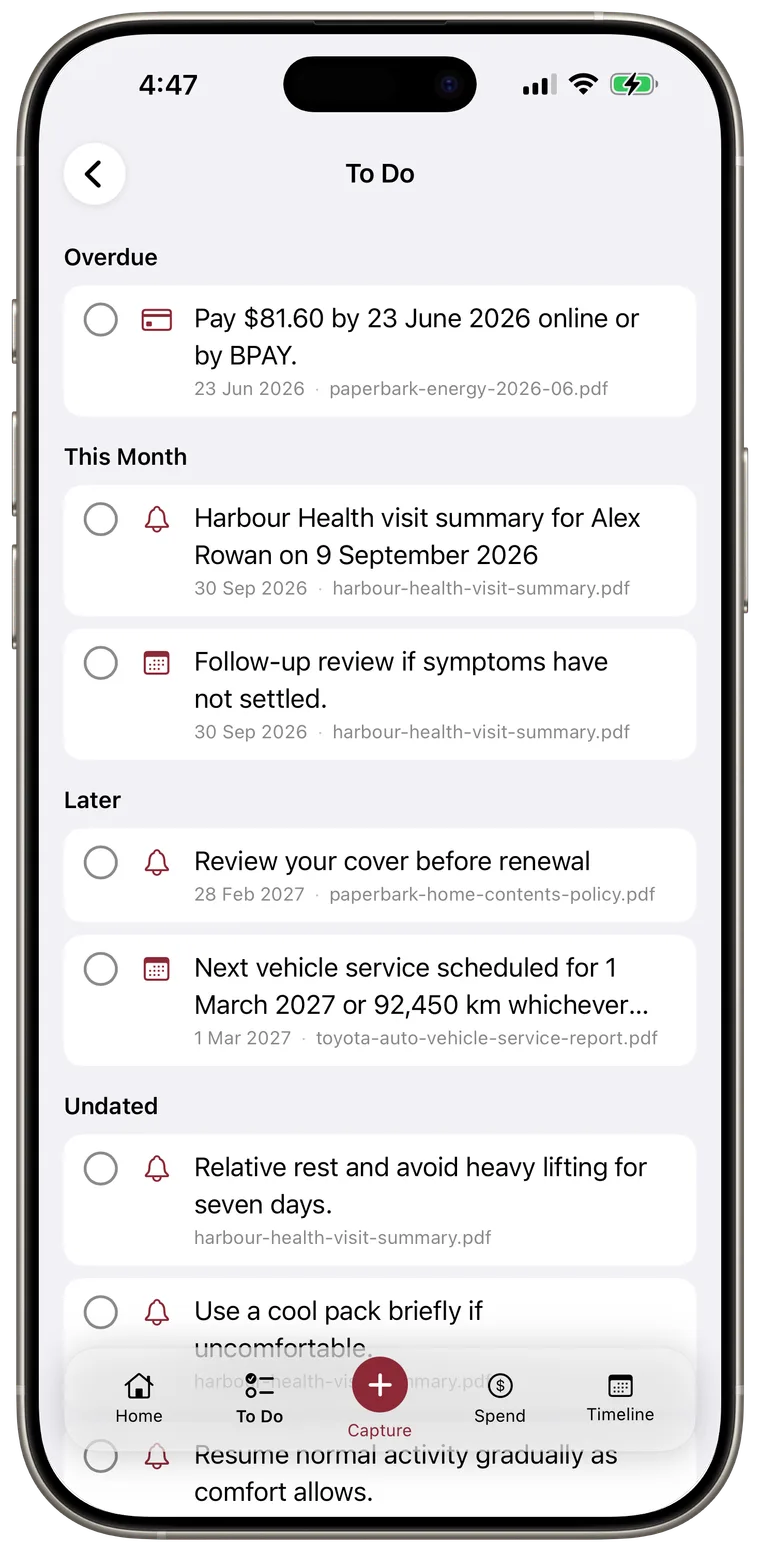
Tap To Do in the bottom bar. Tasks from the current vault are grouped by due date, such as overdue, today, upcoming, or no date.
- Tap a task row to open its source document.
- Tap the circle beside a task to mark it done.
- Expand Done to see completed tasks, then tap a checked circle to mark one not done.
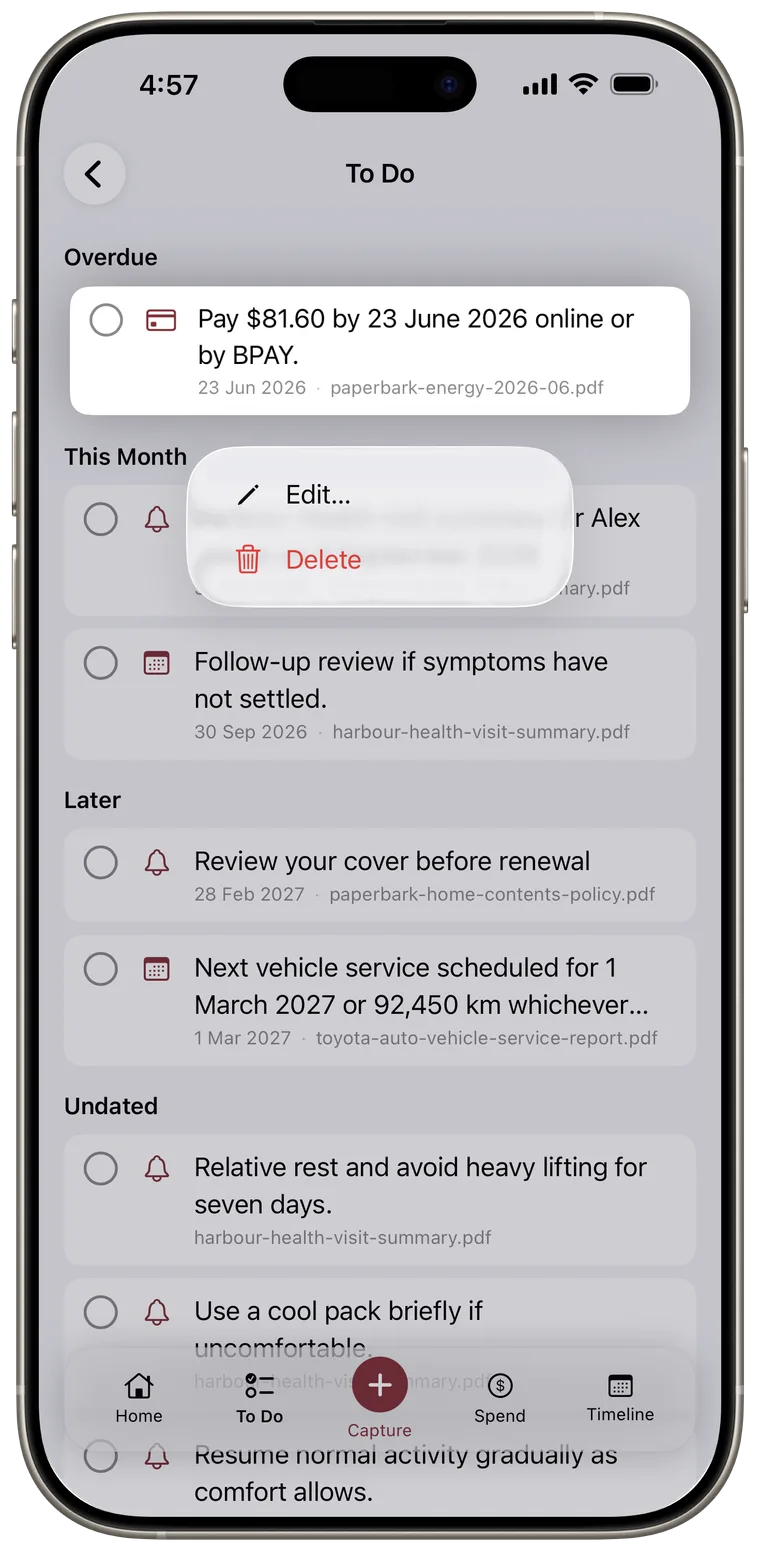
- Touch and hold a task for Edit or Delete.
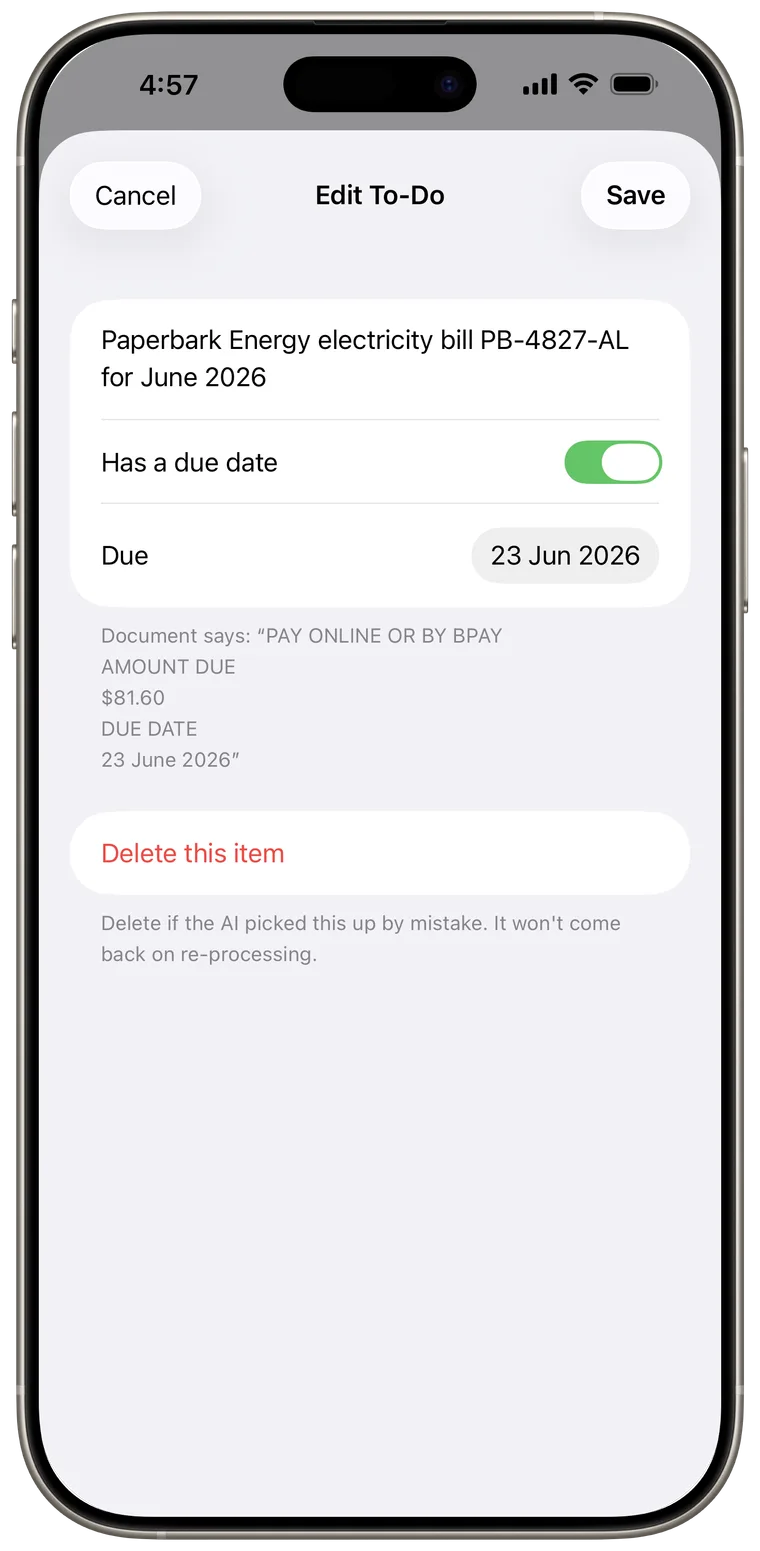
Editing lets you change the description, add or remove a due date, or delete an extracted item that is not useful.

Add a missing to-do
- Open the related document.
- Find Things to do.
- Tap Add to your calendar.
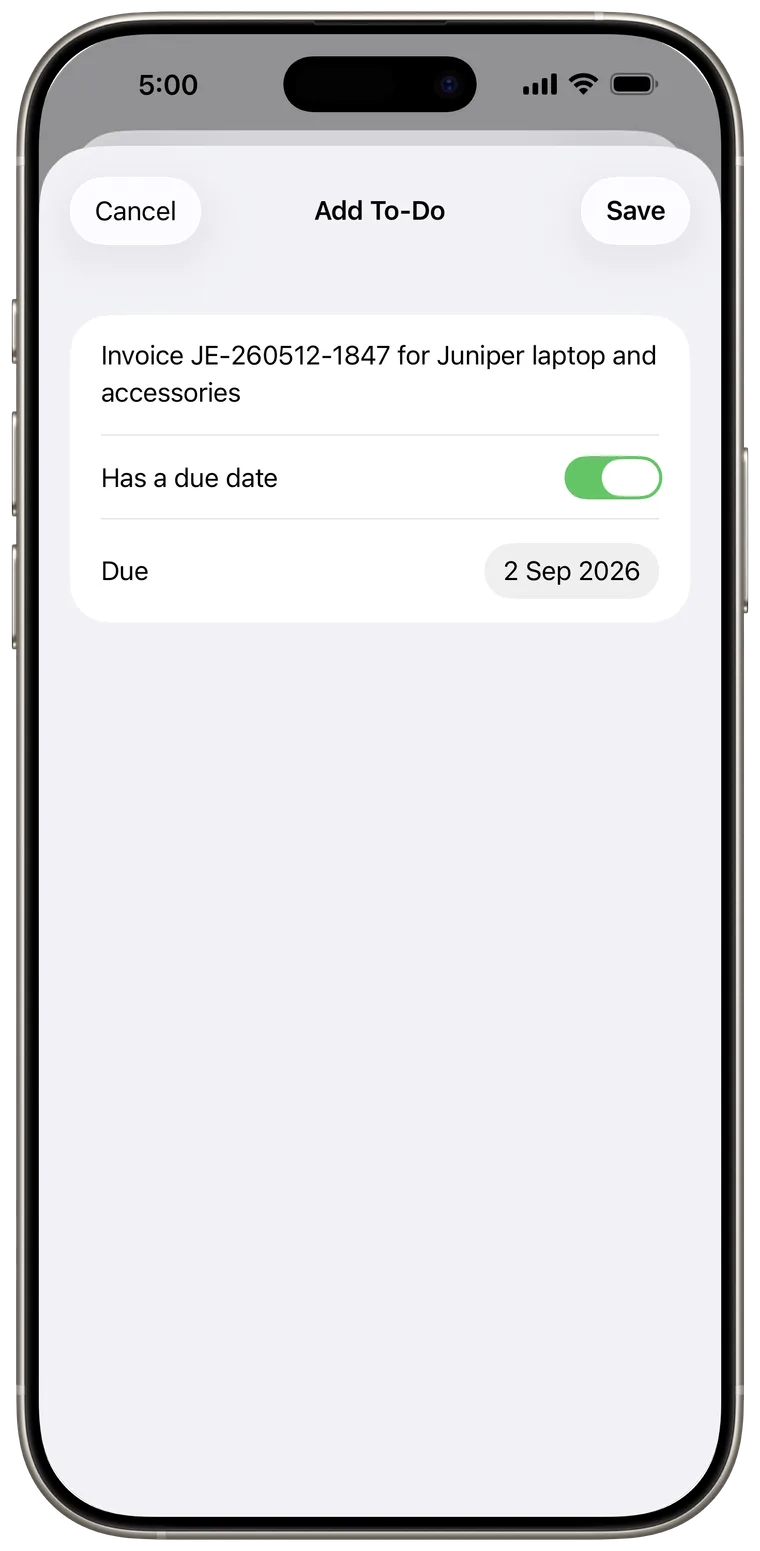
- Enter the task and choose its due date.
- Tap Save.
Cella may schedule a local reminder for a supported upcoming date after you allow notification permission. iOS controls final notification delivery.
Review Spend
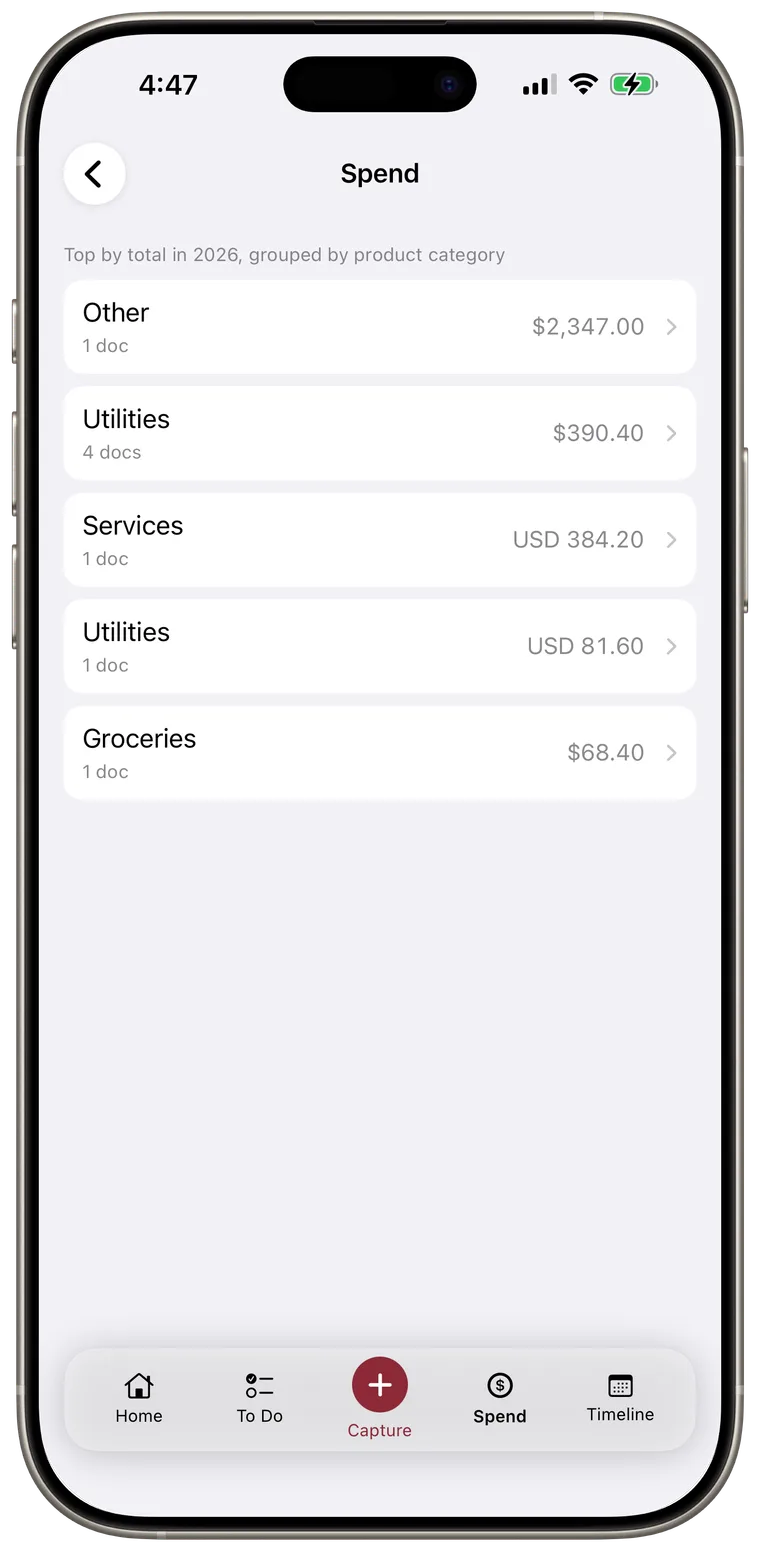
Tap Spend in the bottom bar. Cella shows totals for the current year, grouped by spend category and currency.
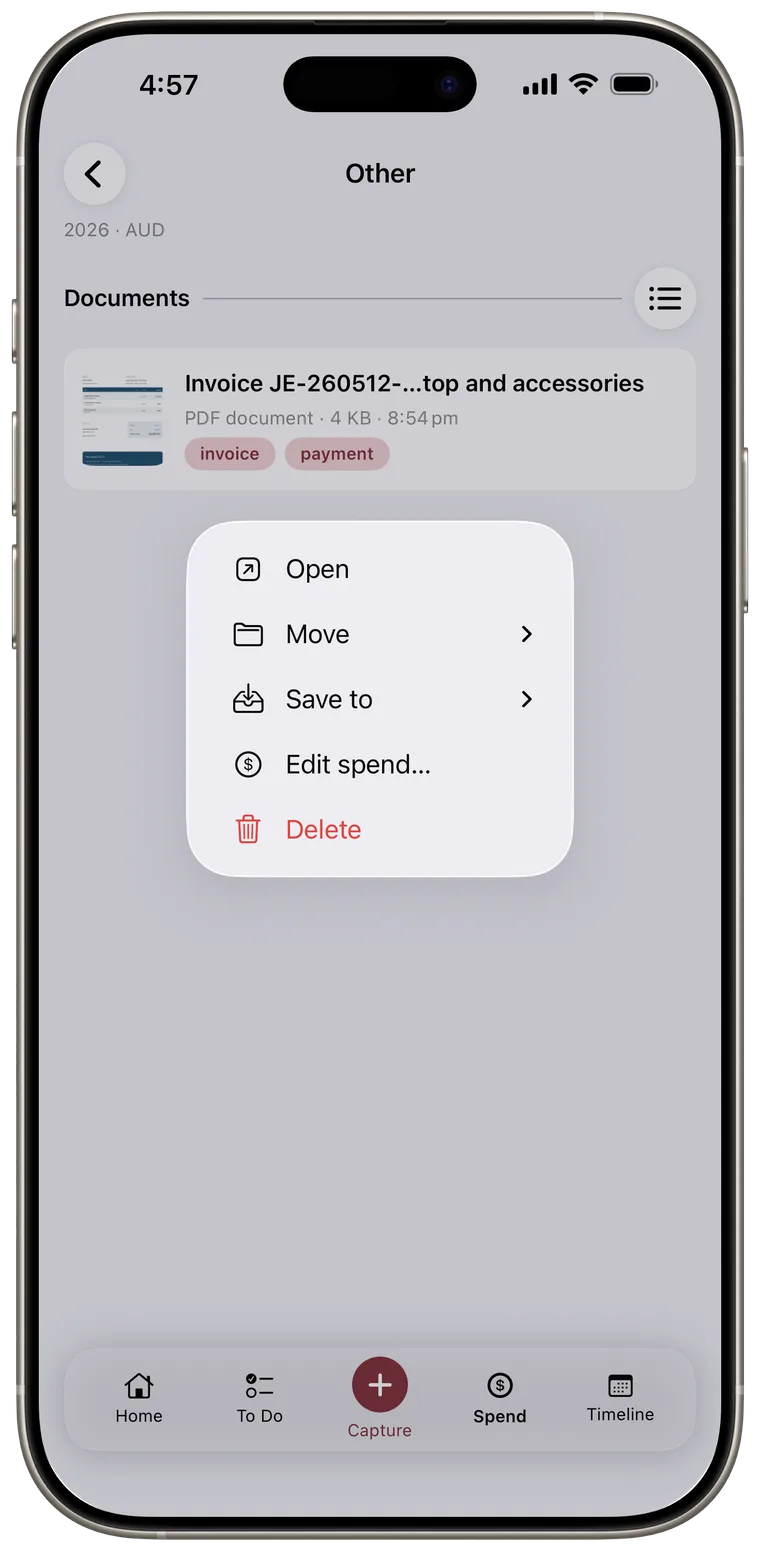
- Tap a category to see the documents behind its total.
- Tap a document to open its details.
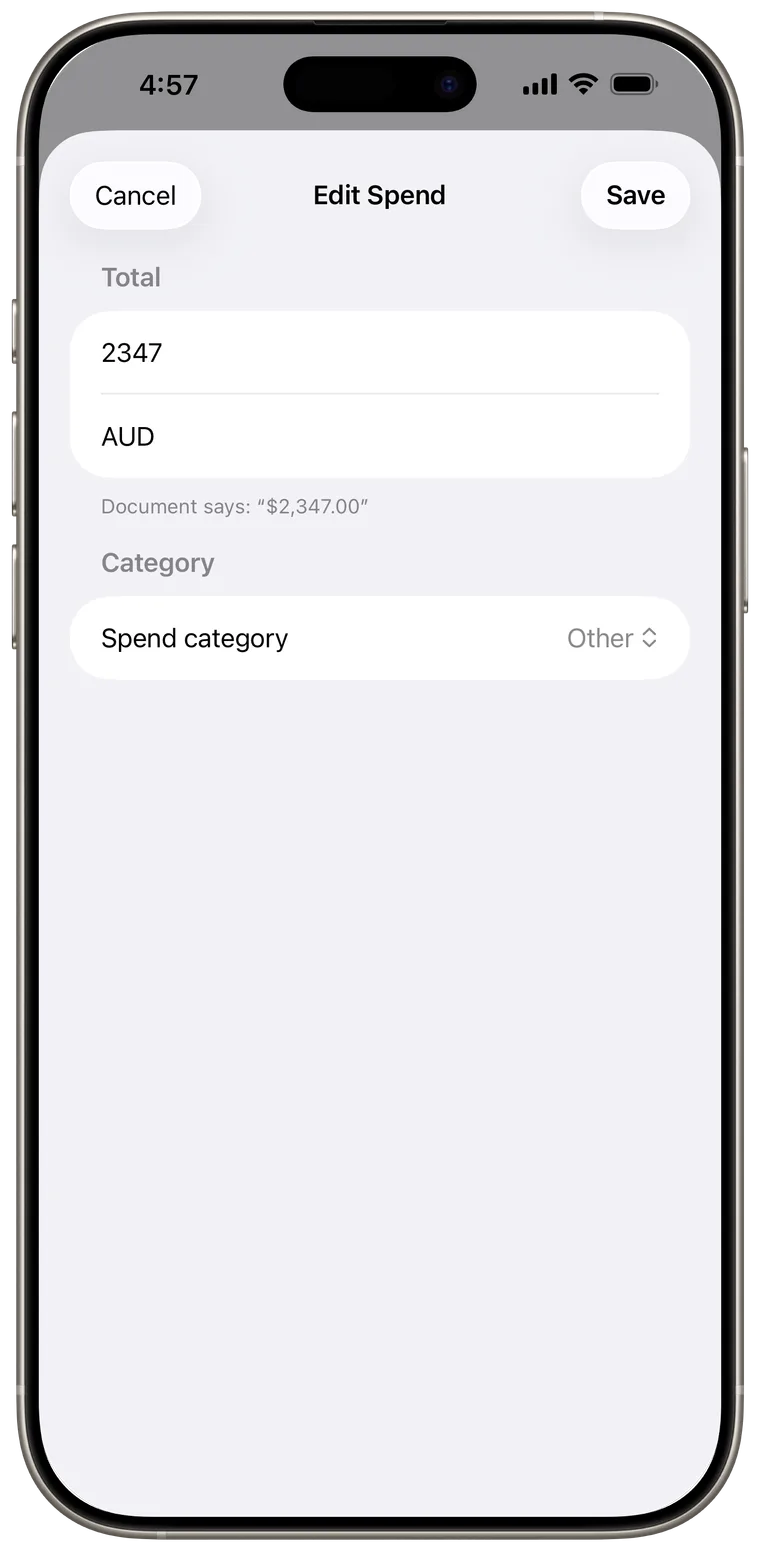
- Touch and hold a document in this list and tap Edit spend for a quick correction.
- Change the amount, currency, or category, then tap Save.
Choosing None as the spend category removes the amount and currency from the spend rollup.
Good to know: Spend does not convert currencies. For example, AUD and USD appear as separate totals rather than one combined amount.

Browse Timeline
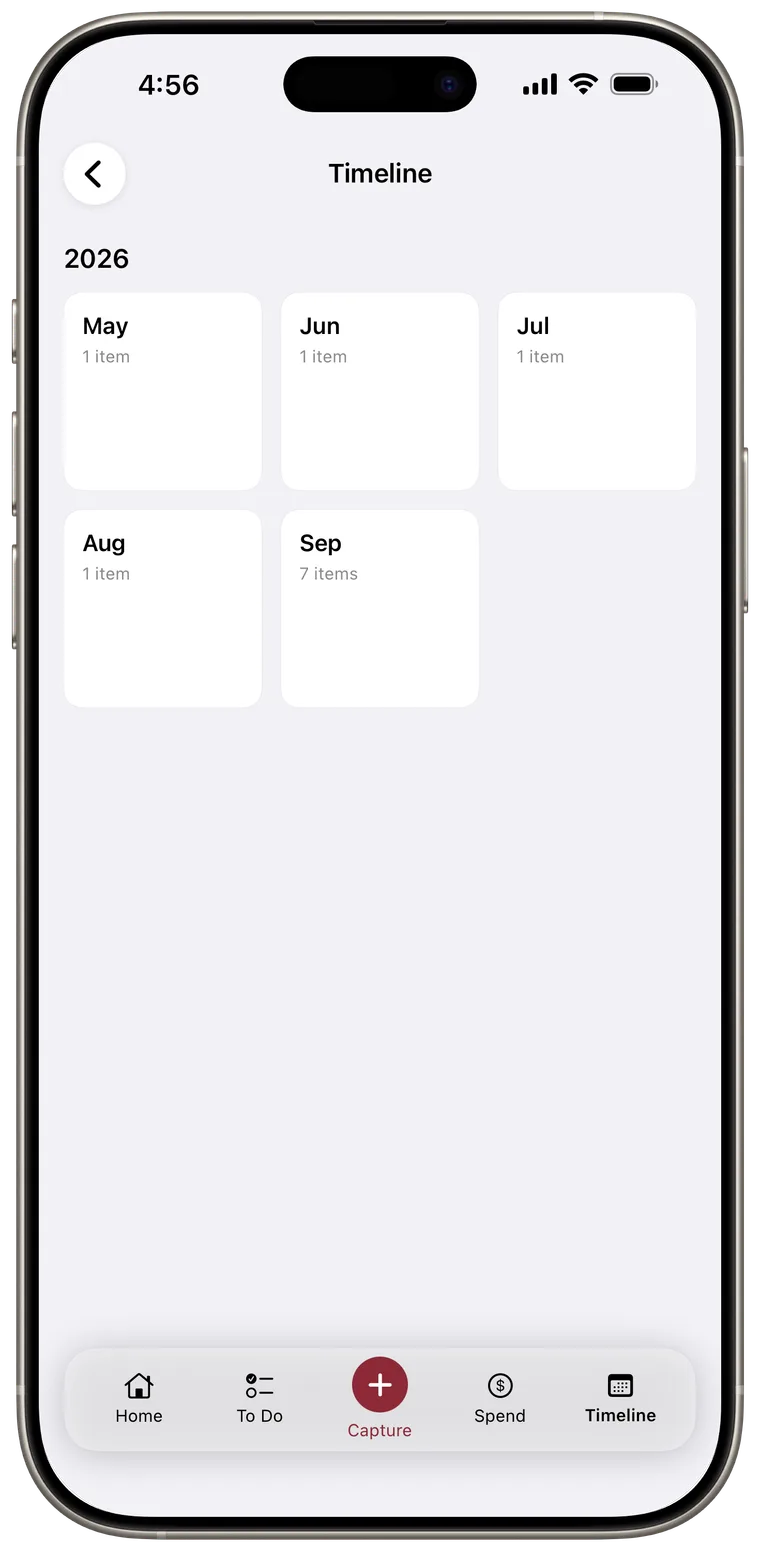
Tap Timeline in the bottom bar. Documents with a usable date are grouped by year and month.
- Find the year you need.
- Tap a month tile.
- Open a document from the month list.
If a document is in the wrong month, edit its Key Details > Date.
Keep Home heads-ups in sync
Completing, editing, or deleting a to-do updates related Home heads-ups. Dismissing a heads-up hides only that reminder. Use More > Reset heads-ups to clear current reminder state, cancel pending Cella notifications, and check the current vault again.